

.svg)
.svg)
.svg)
.svg)



.svg)


.svg)
.svg)

There are too many onboarding tools out there.
Some look like they were built in 2005. Others need a developer just to change a button color.
And a few? They cost as much as your entire marketing budget.
That’s why we put UserGuiding under the microscope. Not just to list features, but to actually figure out where it shines, where it struggles, and who it's really for.
Spoiler: it’s not trying to be everything, but it might be just what you need.
TL;DR
- UserGuiding is a no-code product adoption and user onboarding platform that helps product, marketing, and customer-facing teams create personalized in-app experiences without relying on developers.
- Its use cases include onboarding new users, driving feature adoption, improving activation rates, educating users at scale, and reducing churn through contextual in-app guidance.
- As it offers fast content creation, flexible targeting, and intuitive setup, you can deliver the right message to the right user at the right time with ease.
- However, it doesn’t support mobile apps, and its analytics capabilities might feel limited for teams needing deep behavioral insights.
- UserGuiding’s alternatives include Appcues, Pendo, WalkMe, Userpilot, and Product Fruits. Still, for most use cases, UserGuiding offers the best value for the price –unless you’re after something very specific, it doesn’t yet support.
What is UserGuiding?
UserGuiding is a no-code, all-in-one product adoption solution that equips you with tools and capabilities to improve your feature engagement and user communication.
It also offers features for an automated self-serve support as well as user research.
With UserGuiding’s super intuitive drag-and-drop UI, you can create personalized in-app flows and experiences without writing a single line of code.
What is UserGuiding used for?
UserGuiding is a comprehensive all-in-one solution, which means it covers a wide range of use cases.
However, if we were to list the most common reasons SaaS companies choose UserGuiding, it would look something like this:
- Automating onboarding processes for new users and internal teams
- Decreasing the learning curve of a complex or technical product
- Personalizing onboarding for different personas or use cases
- Delivering contextual tips to boost feature discovery and usage
- Building a unified self-serve support ecosystem (in-product and beyond)
- Announcing new policies, campaigns, and feature releases
- Gathering user feedback during onboarding or after feature launches
- Reducing dependency on engineering for in-app UX content
What are UserGuiding’s top use cases and features?
Now, let’s categorize the user motivations we’ve just listed into broader use cases and identify the functionalities UserGuiding offers for each 👇🏻
User Onboarding
- Guides: You can create interactive product tours, walkthroughs, and tutorials with UserGuiding. These guides help users get acquainted with your product without feeling lost.
Since they’re interactive and they guide users from page to page (prompting actions like entering information into fields or clicking buttons), the time spent on a guide isn't wasted.
Instead, it serves a functional purpose beyond just education by helping users complete meaningful tasks within the product.
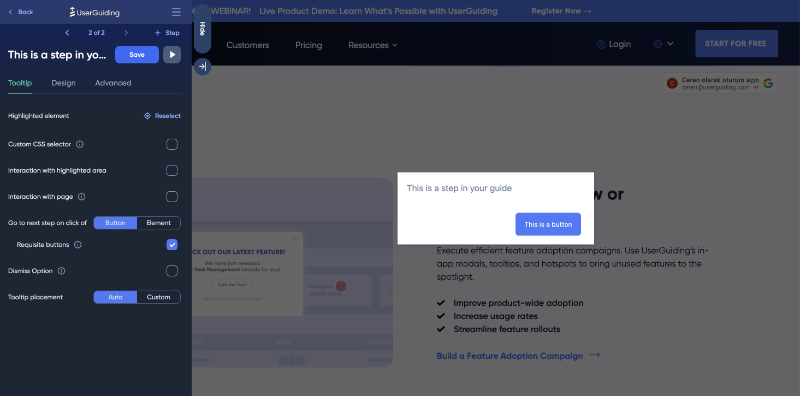
UserGuiding works through a browser extension.
Within this extension, you can select and customize the design of your guide steps, such as tooltips, modals, and input fields, add buttons and visuals, arrange placements, define field selections, and set interaction rules.
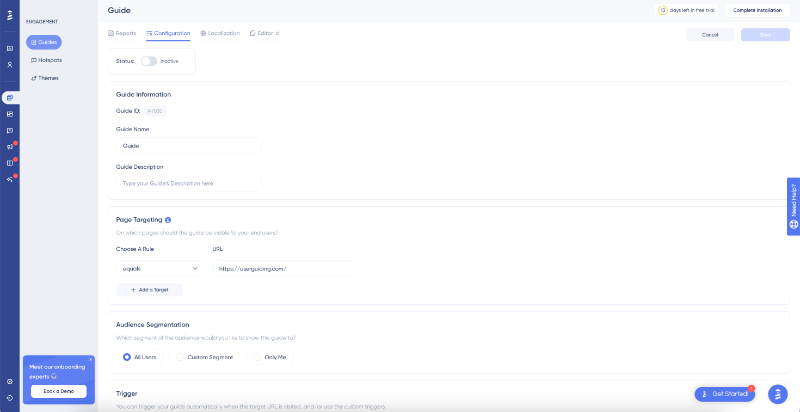
For more advanced settings like page targeting, user segmentation, and localization, you can switch to the main UserGuiding platform to configure them in detail.
You can create guides with multiple pathways through custom buttons that trigger different guides or HTMLs when clicked.
This will allow you to personalize the guides even further.
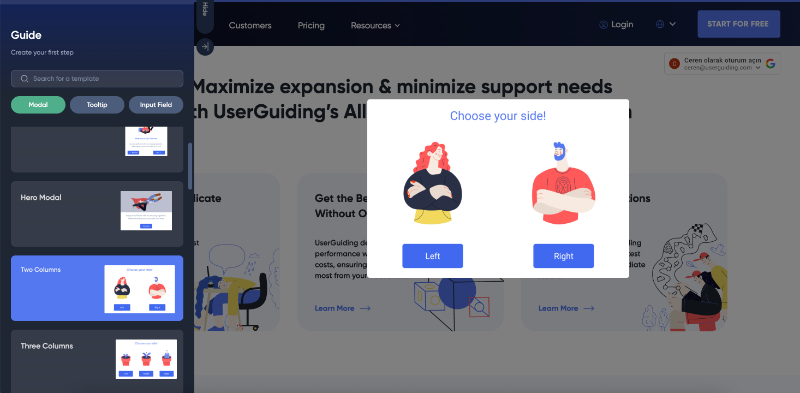
One guide for you and one guide for you, here you go.
- Onboarding Checklists: You can use onboarding checklists to highlight key getting-started content and guides. They also help you create logical, structured learning paths for new users.
Here’s an example onboarding checklist created with UserGuiding:

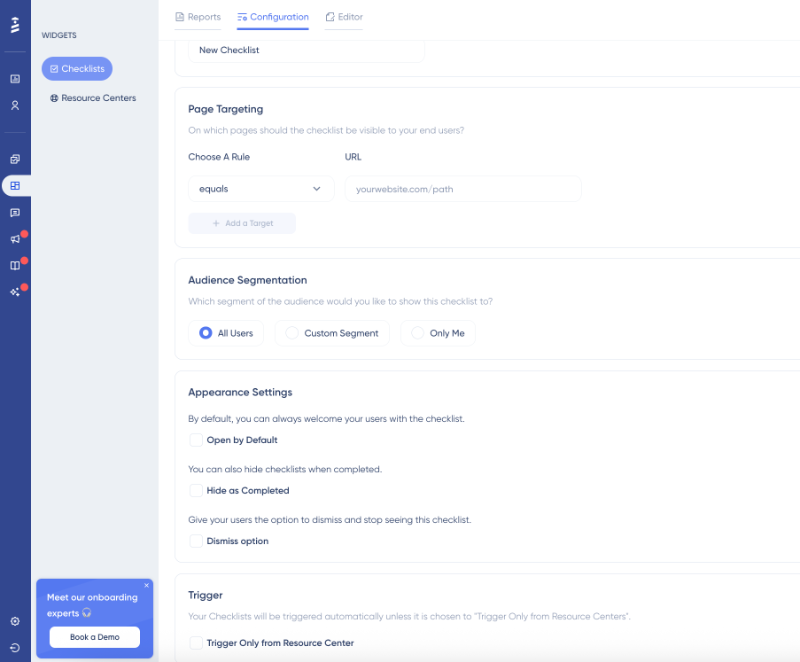
To create a checklist like this, simply go to the "Widgets" section on the UserGuiding platform, select "Checklists", and start adding your items.
Checklists are created directly from the platform, not through the Chrome extension.
You can add features like a progress bar or set rules to unlock items sequentially, ensuring users follow the learning path you've designed.
In the styling section of the checklist editor, you can customize colors, typography, launcher design, and even add a completion animation.
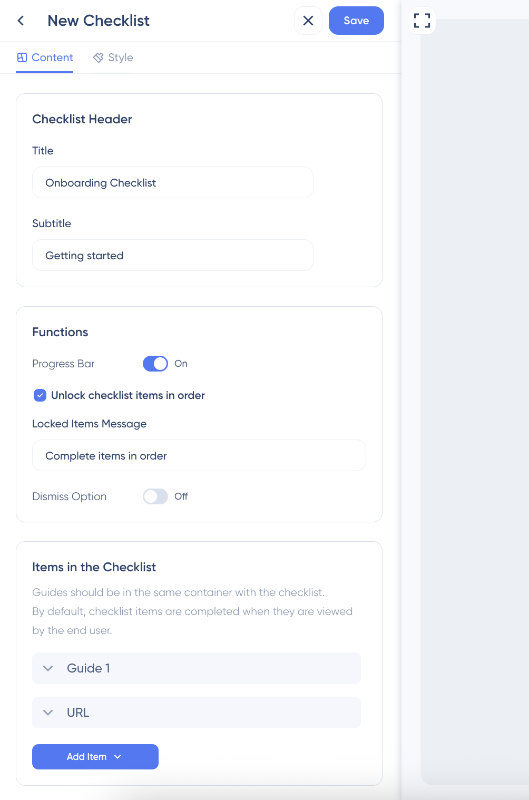
Once you’ve finished with the editor, you can proceed to other configurations like page targeting and audience segmentation, as usual.
This is also where you’ll set appearance options and decide when and where your checklist is shown to users.
For guides, tooltips, hotspots, and announcement modals (the content you create with the Chrome extension, basically), you configure their placement and triggering interactions directly within the extension.
But the advanced settings, such as appearance frequency, are still on the configuration page.
Product Usage Hints & In-product Messaging
- Tooltips: You can use tooltips on their own to provide contextual guidance and pro-level tips. In the guide builder, you’ll find them under Tooltip. Here, you can choose from templates, such as tooltips with buttons, text-only tooltips, or those with visuals and buttons, or start from scratch and add the elements you want as you go.
By applying custom segmentation to your tooltips, you can personalize the messaging you deliver through them.
You can tailor the tip’s content, tone, and level of detail based on different user segments and personas.
- Hotspots: Hotspots are info boxes accompanied by shiny, eye-catching beacons. They let you engage users and provide information without taking over the screen (as announcement modals do) or risking being overlooked entirely (like tooltips sometimes are). You could say they hit the sweet spot.
Here’s an example hotspot from UserGuiding:
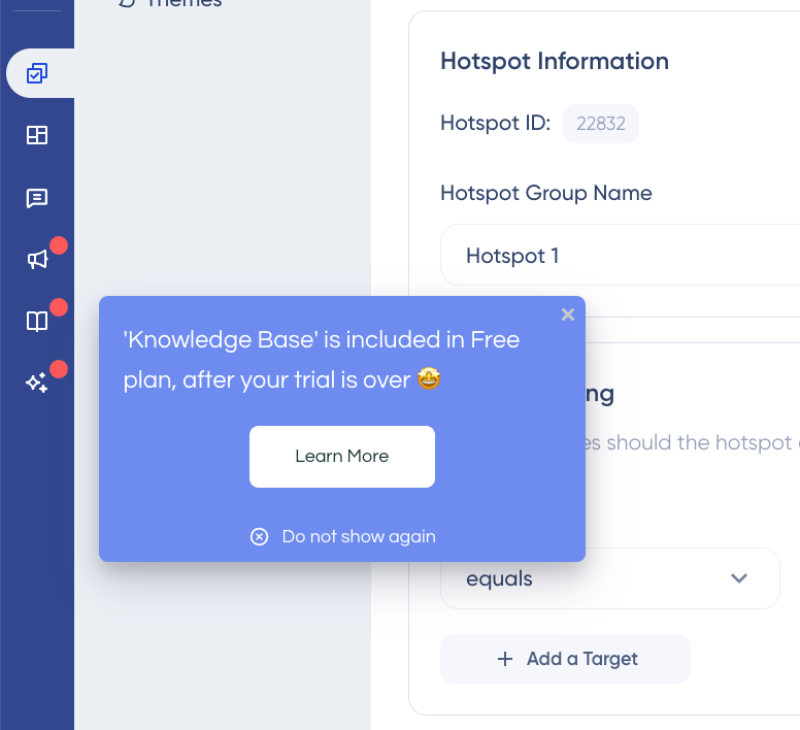
An example hotspot created with UserGuiding
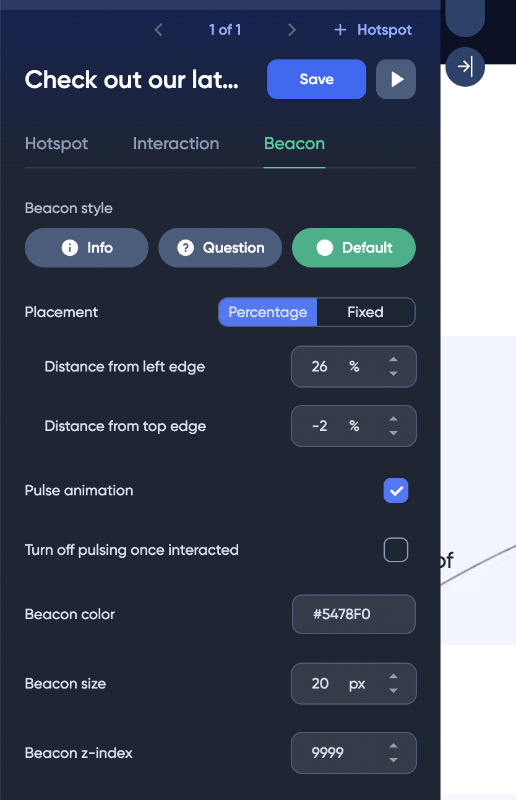
Hotspots have their own feature page and builder within the Chrome extension.
You can customize the beacon’s style and animation directly through the extension.
- Segmentation: Segmentation is a key component of any Digital Adoption Platform (DAP), but it’s often complicated and hard to understand. Thankfully, UserGuiding makes segmentation simple.
From the “People” page, you can view all your users and companies, track active and inactive users, and create or manage custom user segments with ease.

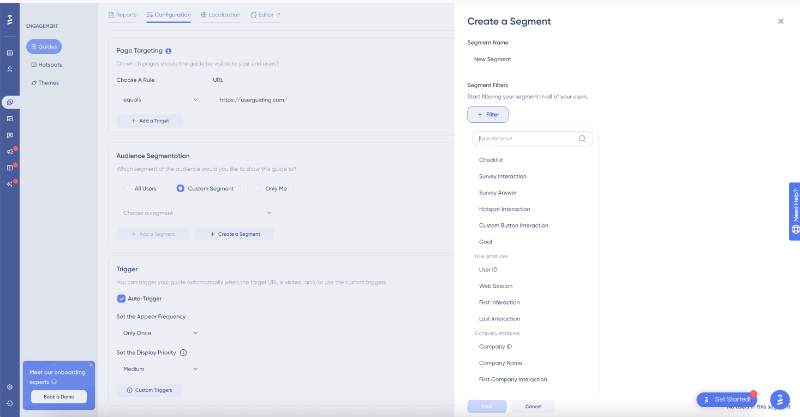
To create a new segment, you can apply various filters ranging from browser and user/company attributes to UserGuiding content engagement and user events.
You can also combine multiple filters using AND/OR logic to target a more specific audience.

Once you have your user segments, you can select them directly from the configuration settings within the feature builders.
If you think of a new segment while creating content, there’s no need to leave your work to go to the segmentation page and then come back; you can create a new segment right within the feature builder itself, too!
Product Announcement
- Announcement Modals: UserGuiding’s announcement modals are created within the guide builder but can also be used independently, just like tooltips. UserGuiding offers a variety of templates that cover different use cases and design styles.
These templates aren’t just for setting button placement and modal size; they also include helpful microcopy to inspire your own messaging, along with engaging illustrations instead of boring placeholder images.
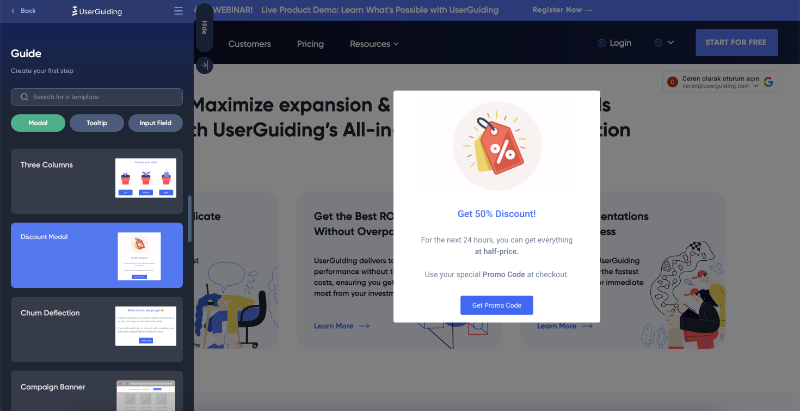
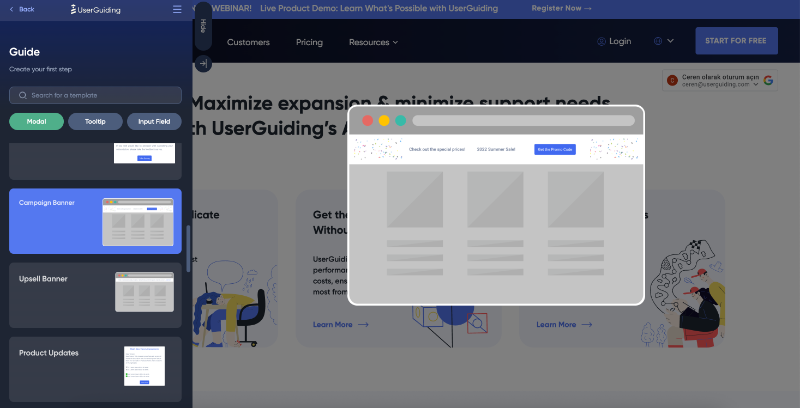
- Banners: Among the announcement modals, there are several banner templates, as well. You can build campaign banners, upsell banners, webinar banners, announcement banners, and cookie banners. Or, you can choose any of these as a template and build a different one for your own use case.
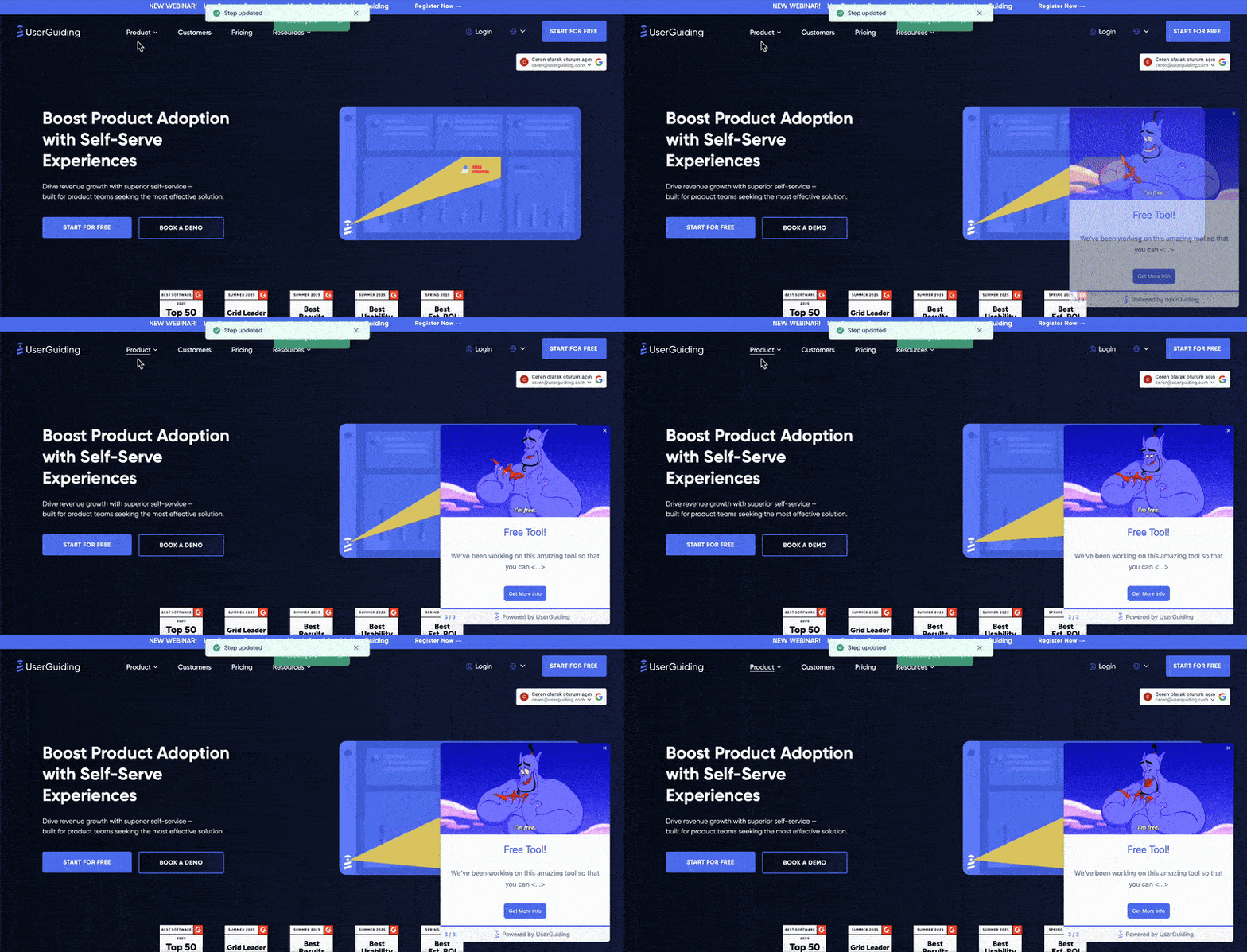
- Slideouts: Slideouts, or side notifications, are announcement modals that appear with a sliding animation, often from the side of the page. However, they can technically slide in from any direction: bottom to top, top to bottom, left to right, or right to left.
- Product Updates: Product updates is a standalone hub for your release notes and announcements. Webinars, new features, bug fixes, integrations, UX/UI improvements, and any other type of news you have to announce go here.
Here’s what UserGuiding’s own product updates page looks like:
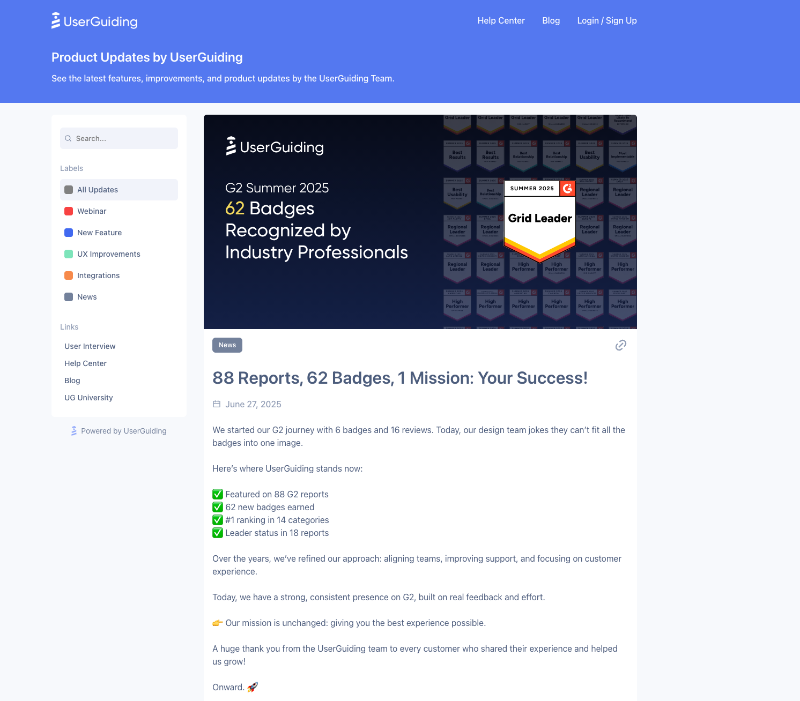
You can customize the look of the page: the header, the footer, the buttons, branding… You can also add visuals or videos to your notes and collect anonymous feedback or emoji reactions under each note.
Additionally, you can add multiple languages to your product updates and set segmentation rules to control when they are shown.

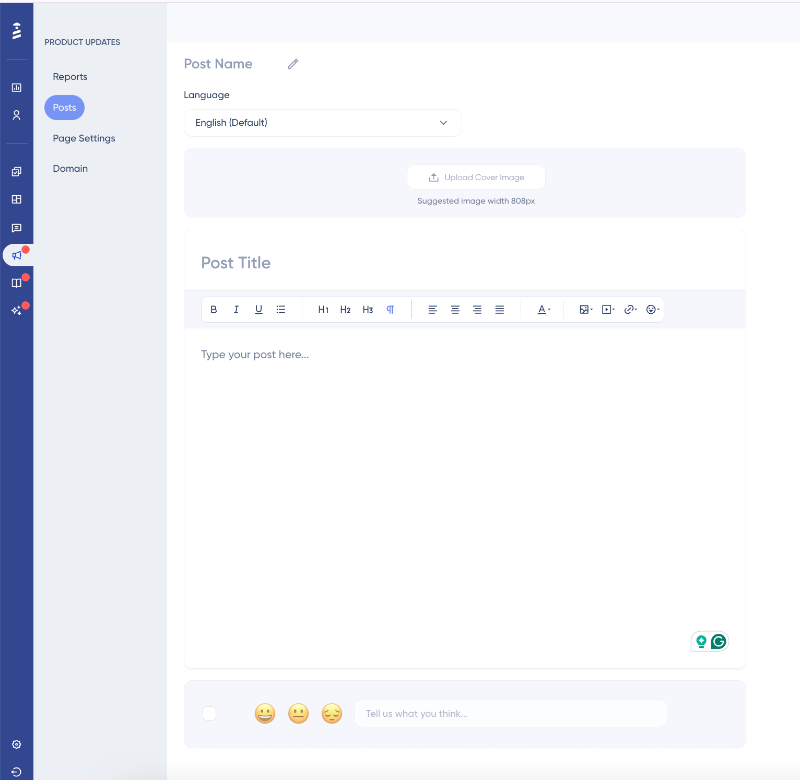
The post editor is separate from the PU builder but is located on the same feature page on the UserGuiding platform. It’s a basic WYSIWYG text editor that allows you to manage the cover image, post title, main body, and other editing tools for your copy.
You can also embed videos, add images, or links within this editor.
Customer Feedback
- In-app Surveys: With in-app surveys, you can collect user feedback on your onboarding flows, gain insights into how users interact with new features, gather support tickets and bug reports, conduct NPS surveys to measure customer satisfaction, or attempt to retain churning users (or at least understand what went wrong in their experience).
UserGuiding provides survey templates for these use cases, and if none of them fit your needs, you can also create a survey from scratch.
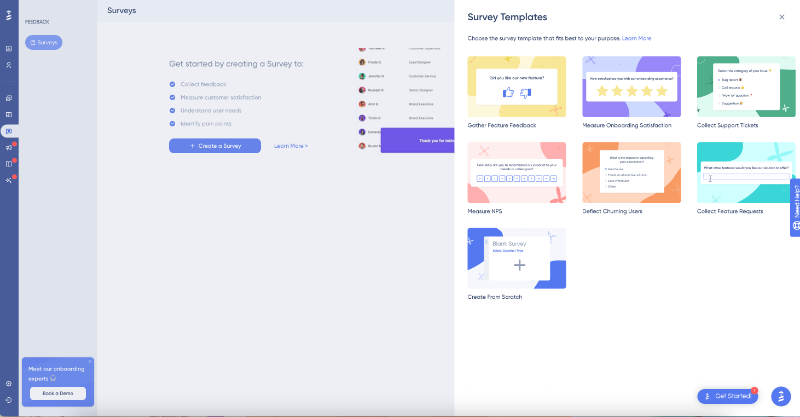
Most other DAPs and onboarding solutions don’t offer nearly as many survey templates.
In fact, some only support NPS surveys and lack the flexibility for custom survey creation. They also tend to offer a limited range of question types.
UserGuiding stands out in this regard. It allows you to create a wide variety of survey questions, including star ratings, number ratings (out of 5 or 10), emoji ratings, thumbs up/down, NPS scores, multiple choice questions, and open-ended fields for written feedback.
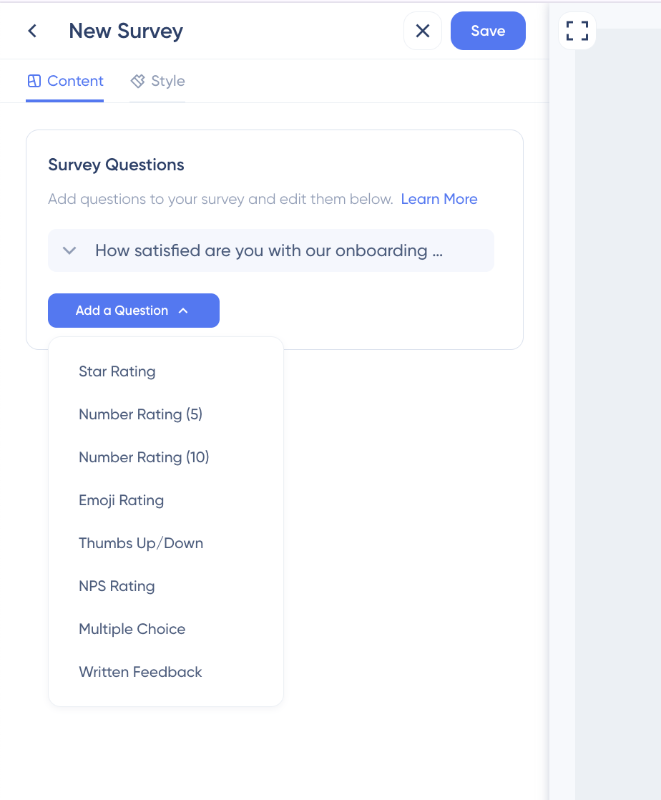
You can add as many survey questions as you’d like (though we recommend keeping it short to encourage more responses) and arrange them in any order.
While this might seem like a standard feature, it’s not always the case. For example, Whatfix surveys only allow one follow-up question, and it must be a specific type, not just any question format.
So… this definitely goes in the pro column for UserGuiding.
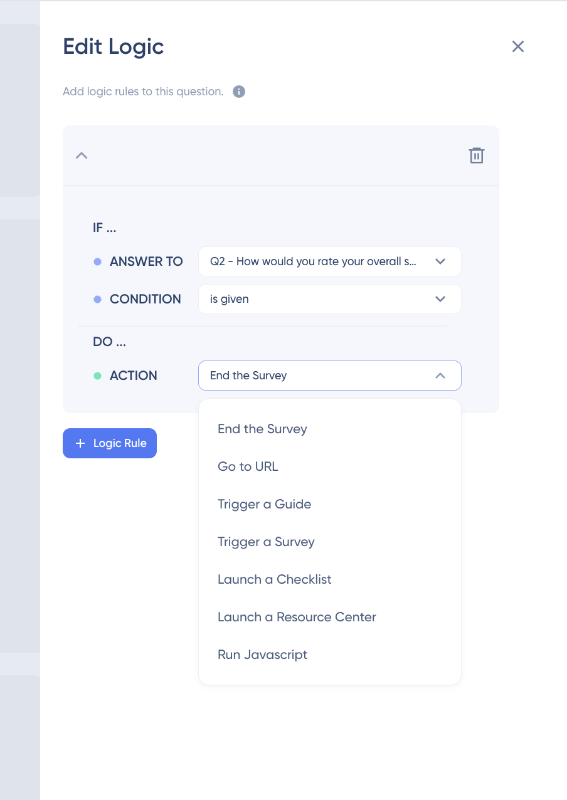
You can also set logic rules for your survey questions. This way, you show a specific follow-up question depending on the answer the user gives.
Logic rules, though might sound intimidating, still have a pretty intuitive and easy to use interface. You choose the condition from a dropdown menu and then choose the desired action, also from a drop-down menu.
So, there are no complex maps or any kind of coding involved. Just logic.
Self-serve Customer Support
- Resource Center: A resource center is an in-app hub for your key content, such as checklists, tutorials, FAQs, and getting-started guides. When users look for important information (or want to revisit a guide they previously dismissed), this is often the first place they check.
You can also include your sales or support team’s contact information here to make it easily accessible.
Here’s how UserGuiding’s own resource center looks:
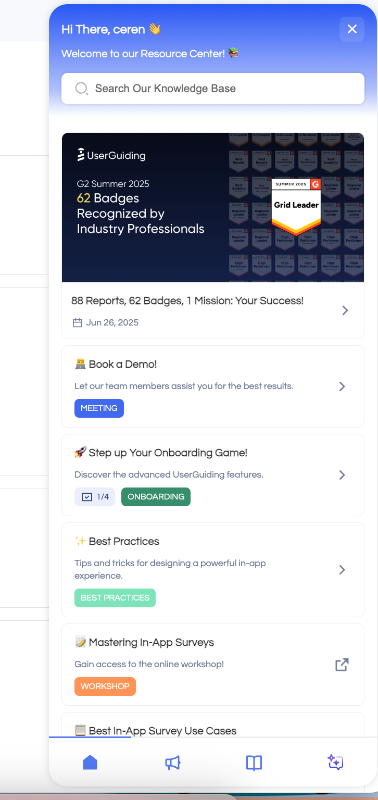
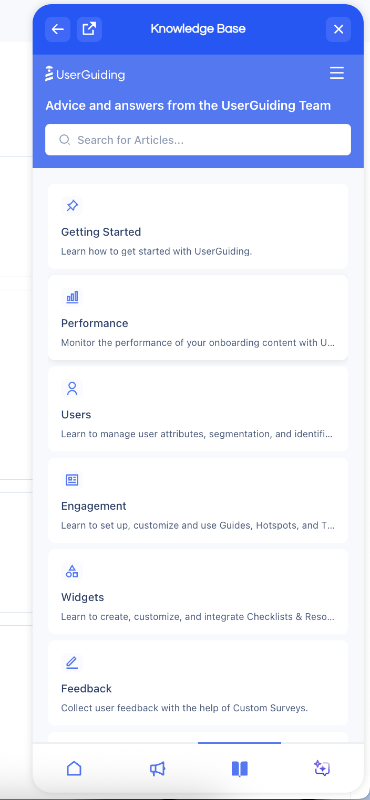
The resource center is more than just a collection of documents. From the RC widget, users can also access your knowledge base articles and product update notes.
While the design is optimized for the smaller in-app view, the content and overall look match your standalone pages. This means users don’t need to visit your company website, navigate to the help center, and search for information. They can find what they need directly within your platform through the RC widget.
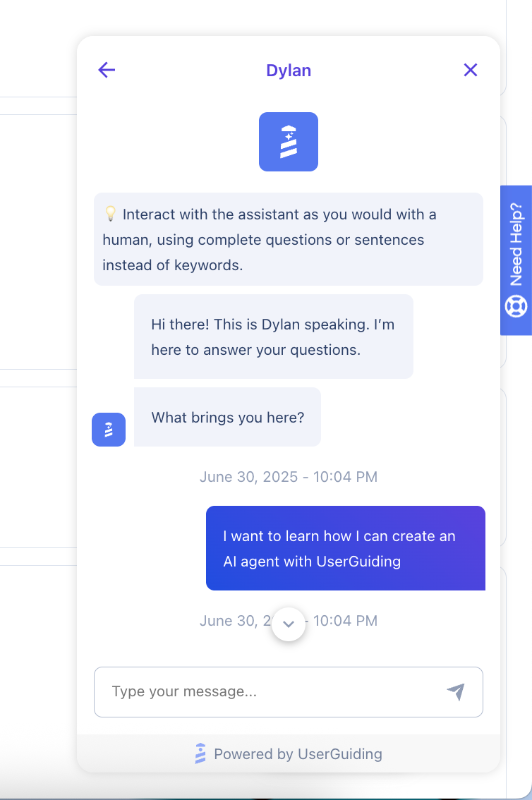
You can also launch your AI assistant from the resource center, though it can have its own separate widget as well. Or maybe you want both, why not?
- AI Assistant: With many competitors using generative AI for microcopy writing, UserGuiding leaves the creative part to your creative teams and offers AI for what it’s really meant for: handling the repetitive, routine tasks.
UserGuiding’s AI assistant delivers the info your users need in a digestible, conversational way. Its goal is to lighten the load on both your support teams and your customers.
So when users don’t want to sift through endless documentation (or just prefer explaining their problem instead of guessing the right help center keywords), your AI assistant will be ready to step in.
Your support team won’t waste time on easy fixes, but your users will still get human-like support.
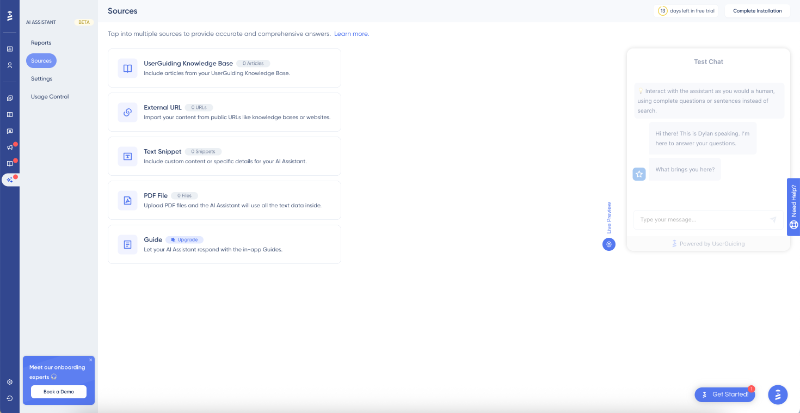
You don’t need any technical knowledge about chatbots or Large Language Models (LLMs) to create an AI assistant with UserGuiding. There’s no coding or AI training required.
Simply choose the sources you want your assistant to reference from the UserGuiding panel. Source options include linking your knowledge base, importing content from URLs, uploading PDFs, or adding text snippets directly.
Your AI assistant can also recommend relevant in-app guides. For example, if a user asks how to use a specific feature and you have a guide for it, the assistant can offer to launch that guide right then and there.
- Knowledge Base: We’ve already said that you can add an optimized version of your standalone knowledge base to your resource center, so it’s not a total surprise that you can create a knowledge base with UserGuiding.
You can organize your articles into custom categories, add a search bar for easy navigation, and, similar to the product updates (PU) page, use localization to create knowledge bases in multiple languages.
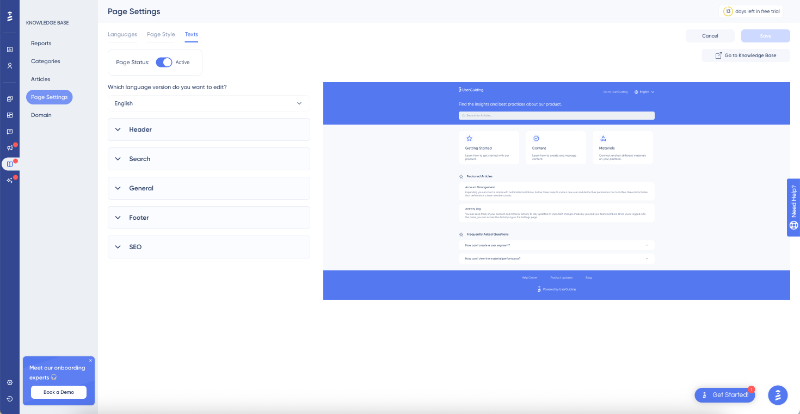
Here’s what a knowledge base created with UserGuiding looks like:

The knowledge base builder is quite similar to the PU builder. It includes language settings, page settings, and text settings. The article builder is separate and functions as a WYSIWYG text editor, featuring the same buttons and elements as the PU post editor.
In-app Engagement Monitoring
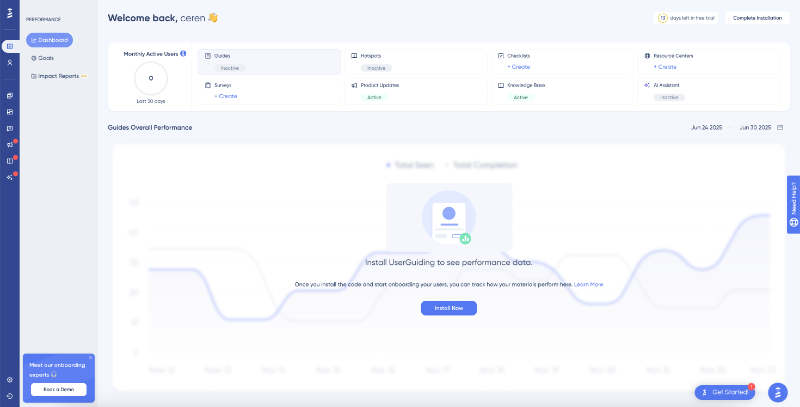
- Performance Dashboards: UserGuiding lets you view all your materials and their performance from a single dashboard. While you can monitor engagement for each material type individually on their respective reports pages, the performance dashboard provides a quick, comprehensive overview of everything at once.
Here, you can also see your MAU numbers, so you can stay on top of your product usage and maybe consider adjusting your plan details if needed.
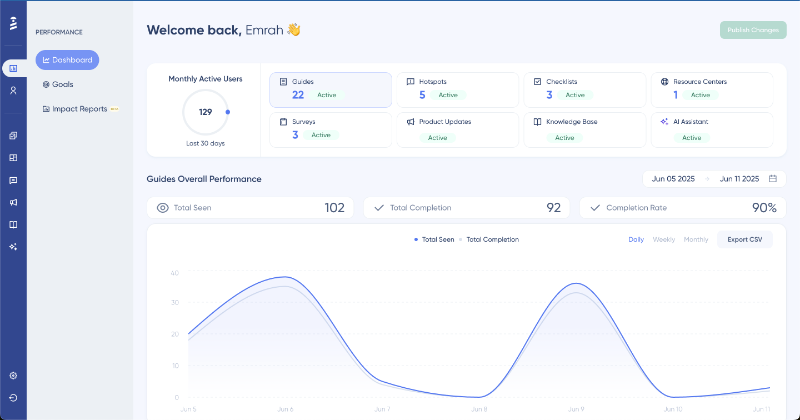
On the performance dashboard, you can see the number of active items for each material type (guides, hotspots, checklists, resource centers, surveys) as well as the status of your product updates, knowledge base, and AI assistant.
When you click on a material type, you get an overall performance chart showing how your content in that category is doing. For example, with guides, you’ll see how many times they were viewed and completed.
The chart can display data daily, weekly, or monthly, so you can track trends and changes in engagement over time.
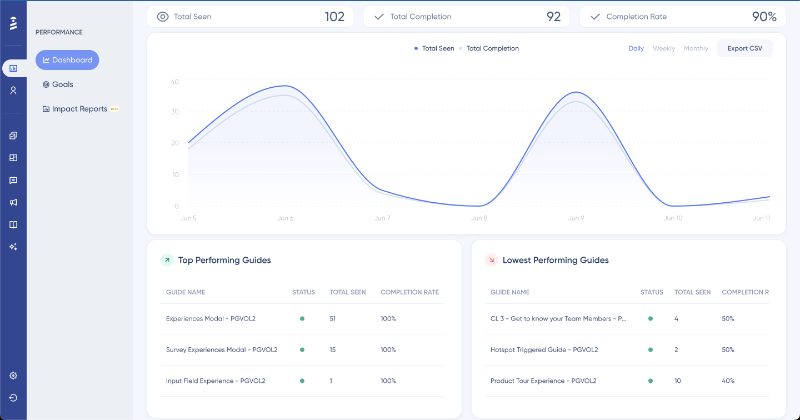
Below the chart, there’s another section showing the top-performing and lowest-performing content within the selected material type. Continuing with guides, this lets you quickly identify your best and worst-performing guides.
Along with the names, you see total views and completion rates, so you can compare based on real data without having to open each guide’s individual report.
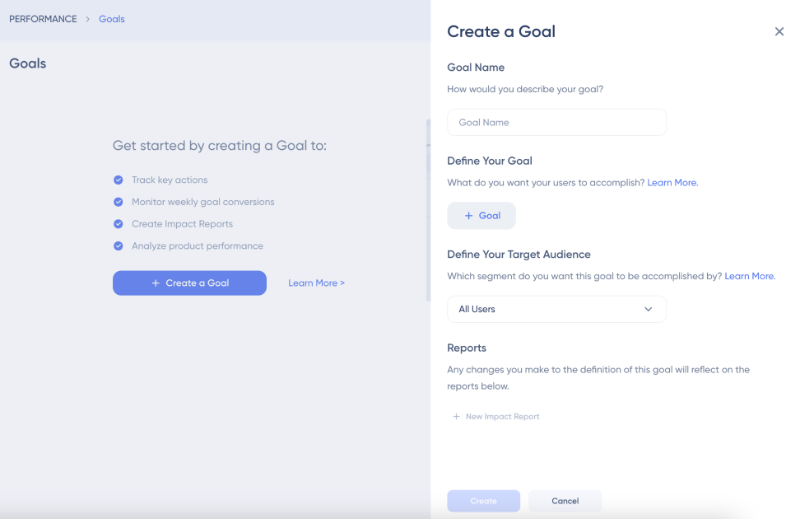
- Goal Tracking: UserGuiding doesn’t offer advanced native event tracking capabilities. However, you can set goals to monitor user behavior and engagement. These goals are based on default UserGuiding material interactions, but you can also track custom events by sending custom attributes as goals.
To gain more specific and insightful data, you can target particular user segments instead of your entire audience when setting engagement goals.
Once your goals are set, you can monitor how many users complete them and track changes over time, such as week-to-week trends.
- Impact Reports: Impact reports are still in beta (so please be kind). This feature helps you understand how specific actions influence user behavior and helps you reach your goals, making it closely linked to the goal-tracking feature.
That means you need to set your goals first before creating any impact reports.
Once your goals are set, you choose one (or more) actions to monitor and see how they affect the goal you want to analyze. It’s likely that several actions can influence user behavior.
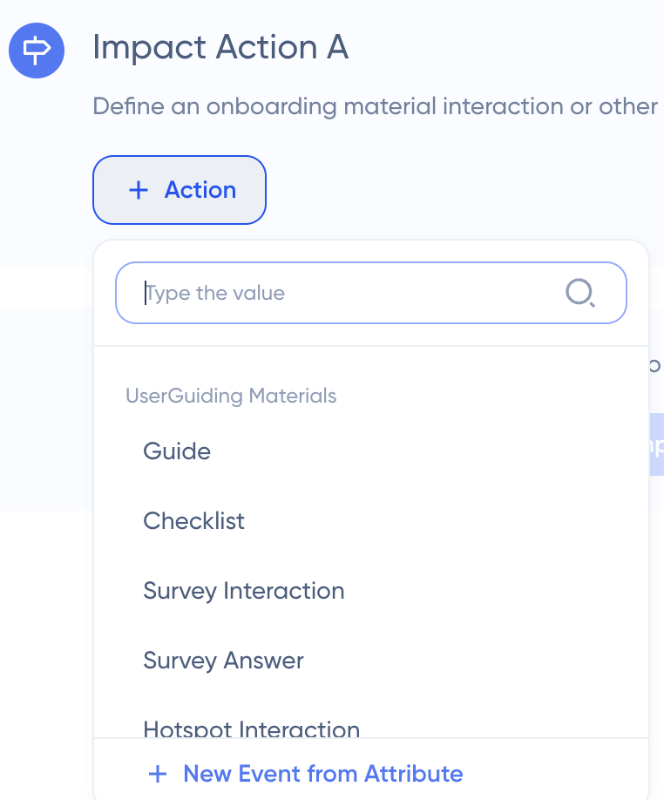
Once you’ve set your criteria, save it, and voilà, you get the report.
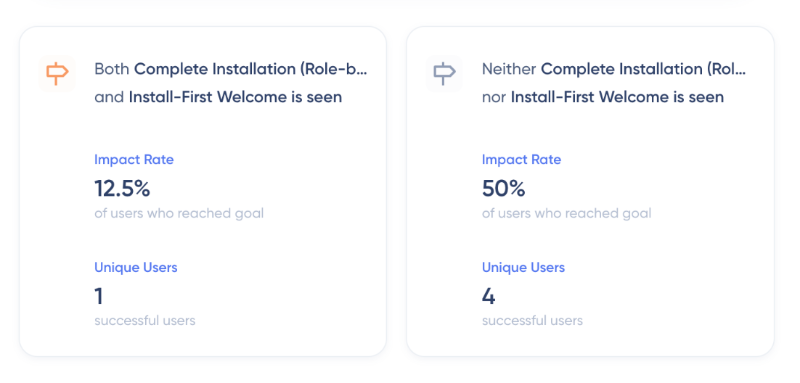
The first thing you’ll see is the goal conversion rate, which shows the percentage of users who achieved your goals within the selected criteria.
Next, you’ll see the impact rates for each action you selected individually, their combined impact, cases where none of the actions significantly affect the goal, and finally, other actions influencing the goal but not included in the report.
The report shows both percentages and unique user numbers.
So, if the percentage is high but the user count is low, you can make a more informed judgment instead of being misled by percentages alone.
All of this information is also visualized with a pie chart, as well.
How much does UserGuiding cost?
UserGuiding offers a transparent, MAU-based pricing model that lets you estimate your costs upfront using an MAU slider on the pricing page.
But before you dive into the math, here are some numbers to get you started.
UserGuiding has 3 pricing tiers: Starter, Growth, and Enterprise.
These plans provide access to UserGuiding's suite of in-app experience and product adoption features, including guides, hotspots, checklists, surveys, resource centers, knowledge bases, product updates, AI Assistant, analytics, and more.You also get integrations with Google Analytics, popular knowledge base platforms, and any live chat software you may already be using.
The Starter plan begins at $249/month (billed yearly), while the Growth plan starts at $499/month (also billed yearly). These prices apply for up to 2,000 MAUs.
The yearly billing detail is important because UserGuiding also offers a monthly billing option for all paid plans.
While yearly billing saves you about 30% over the course of a year, monthly billing is available if you prefer not to commit to an annual contract.
In terms of features and capabilities, all the core offerings come with the Starter plan.
UserGuiding doesn’t make you upgrade just to access key features like custom surveys (side-eyeing Userpilot 👀).
You get all the adoption essentials, basic analytics, and customization options. Plus, the number of integrations available on the Starter plan is pretty impressive.
Also, AI features (Lighthouse included) are available across all plans.
What really affects UserGuiding’s pricing tiers are feature limits and access to advanced tools like A/B testing, impact reports, and goal tracking.
These are powerful capabilities, but not necessarily essential for small businesses or startups just starting to explore product adoption.
👉🏻 It’s true that UserGuiding isn’t the cheapest solution on the market, especially if you’re only using it for in-app engagement and customer onboarding.
However, it’s still far more cost-effective than its closest competitors in the DAP world, like Userpilot, Appcues, Whatfix, and Chameleon.
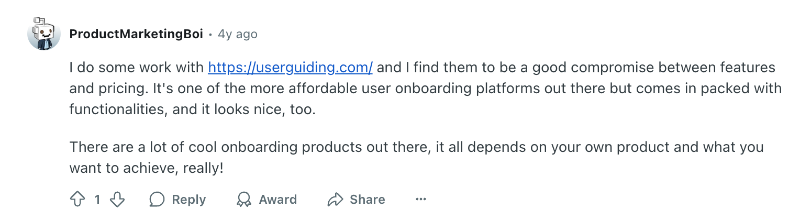
As this Reddit user says, UserGuiding packs great value for its cost.
What are the pros of UserGuiding?
UserGuiding offers more than just a great toolkit. Here’s what customers love most about the platform:
✅ True No-code Experience: There are plenty of “so-called no-code” products out there that still end up requiring heavy support from developers just to create content or configure analytics.
That’s not the case with UserGuiding. The platform truly requires no coding knowledge or technical background, even when setting up analytics.
Its no-code customization, styling, and targeting capabilities are extensive enough to cover most use cases and branding needs.
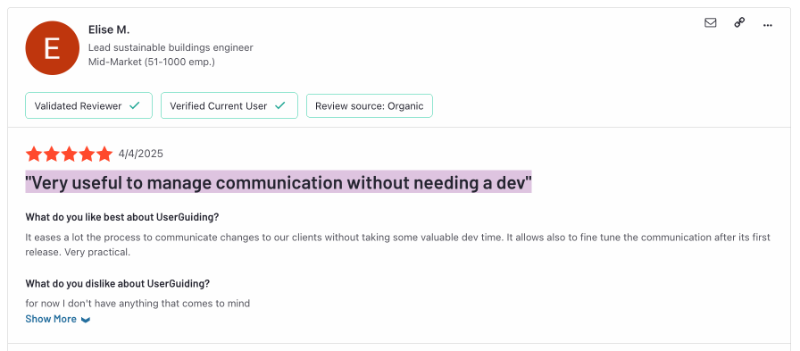
Several customers also highlight how easy the platform is to use, even for non-technical teams. They mention being able to build tutorials and onboarding flows themselves using the drag-and-drop editor without relying on tech teams.
Easy, fast, and, really no-code.
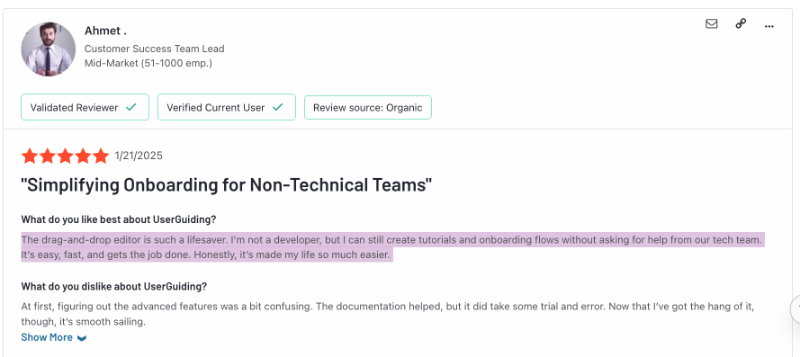
✅ Easy Set-up and Fast Implementation: The ease of use continues through the setup and initial implementation, too. UserGuiding has a user-friendly interface and even comes with its own goal-oriented onboarding.
First, you’re asked about your use case and interests, and then the platform immediately walks you through the most relevant features.
For everything else, you can always check out the training materials in the in-app resource center or chat with the AI assistant.
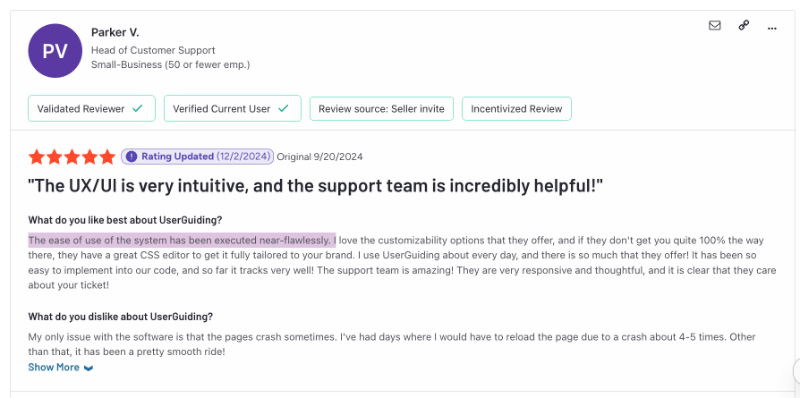
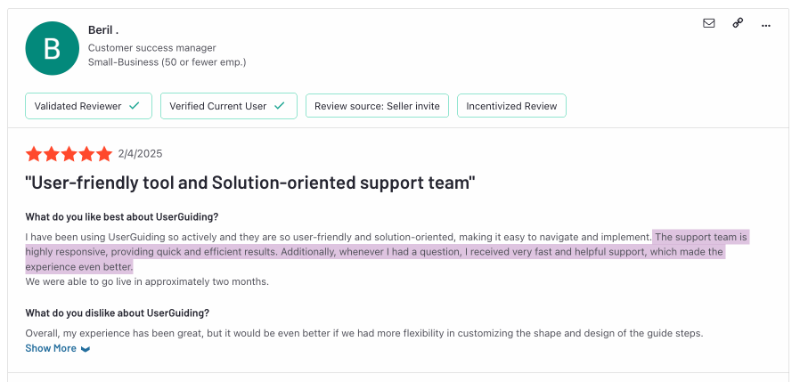
✅ Solution-oriented Support Team: UserGuiding has a detailed and well-organized self-serve support system, but their customer support team is even better.
They’re available 24/7, respond quickly, and offer clear, actionable solutions that actually solve your problems instead of making things more confusing.
✅ Comprehensive Toolkit for Comprehensive Use Cases: UserGuiding is an all-in-one solution packed with capabilities that support a wide range of use cases, user needs, and goals.
Instead of juggling multiple tools for individual purposes, which drives up costs, lowers efficiency, and drains your motivation, UserGuiding lets you handle everything from one centralized platform.
No more wasting time jumping between tools. Just focus on your goals and get things done, all in one place.
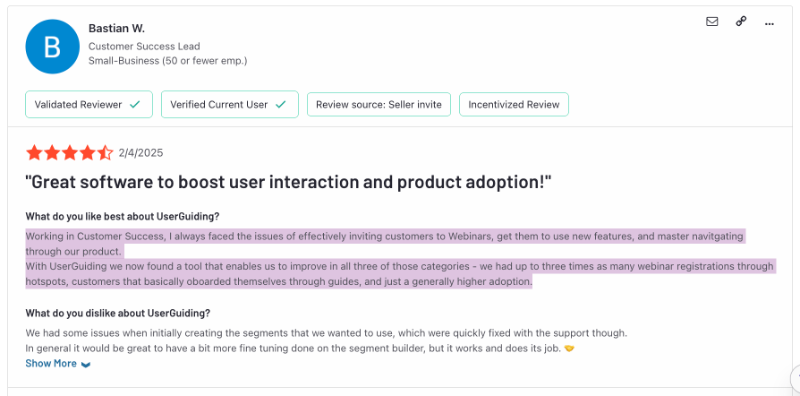
UserGuiding’s comprehensive toolkit also makes it easy to scale as you go and experiment with different adoption practices as you start seeing results. So, even if you come for just the guides and checklists at first, there’s a good chance you’ll soon feel tempted to try out the knowledge base, product updates, or even the AI assistant.
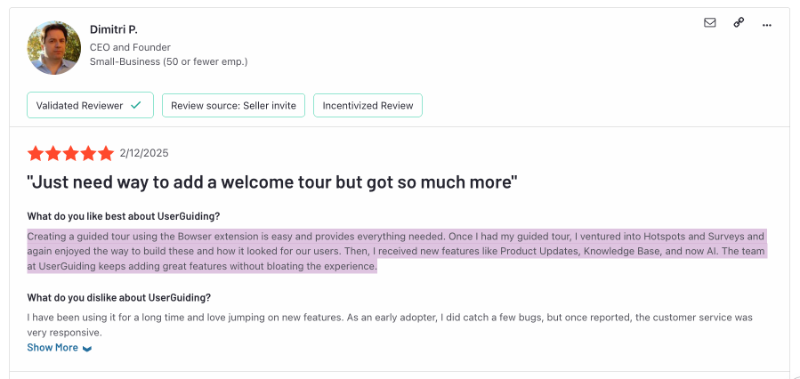
✅ Detailed Segmentation and Targeting: The reason some in-app content hits the mark while others just annoy users is simple: targeting and personalization (or the lack of them).
Offer enterprise plan campaigns to a trial user, and you’ll flop. But show a one-tier-up offer right after a user engages with a feature and nears a usage limit? Now you’re in their head.
Show a complex implementation tour to a marketing specialist? Prepare to be roasted. Show it to their team lead or dev team? Now you’re being genuinely helpful.
Segmentation often gets messy. Unless you’re using UserGuiding.
Customers say they don’t have to guess how users will react. With no-code targeting and easy segment setup, personalizing in-app content feels simple and effective.
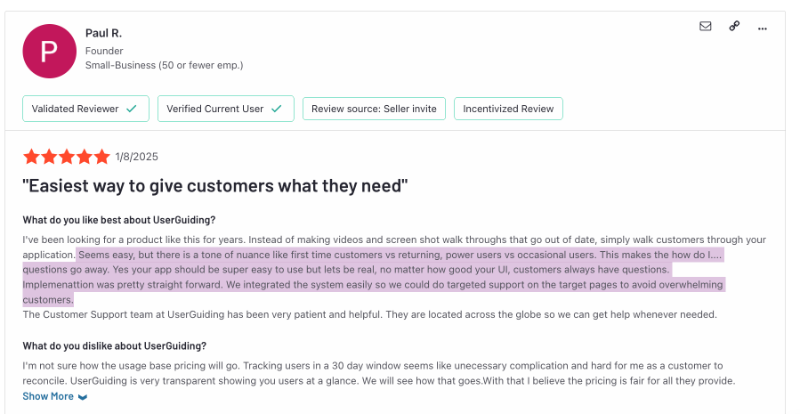
✅ Quick Results and ROI: You can build in-app content in minutes with UserGuiding, not just guides, but also standalone knowledge bases, product updates pages, and even an AI assistant.
As long as you know what you want, the platform won’t make you jump through hoops to get it done.
And when you can build fast, you can see results fast, too.
Several customers report adoption increases of up to 20% in a short time after getting started with UserGuiding.
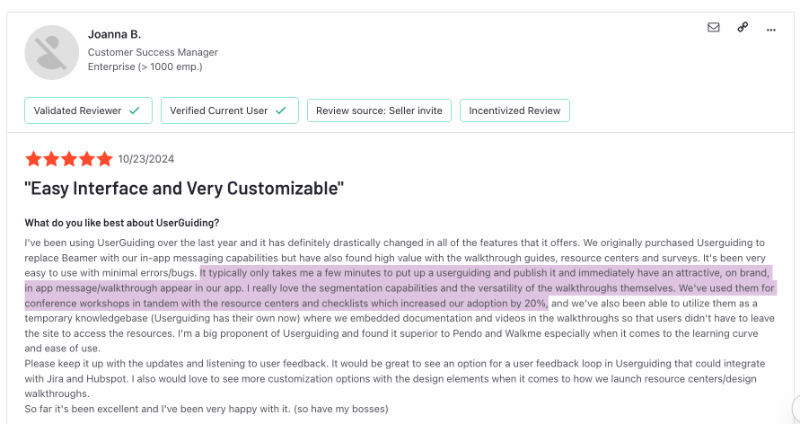
✅ Modern-looking UI and End Products: We’ve shown you plenty of end-products built with UserGuiding: modern, sleek, and fun. But the platform itself is just as good-looking, too. The UserGuiding panel is not only intuitive, but also refreshingly modern.
Because let’s be real, you need a beautiful space to create beautiful things.

What are the cons of UserGuiding?
It wouldn’t be fair not to mention some drawbacks of UserGuiding. After all, no software is perfect.
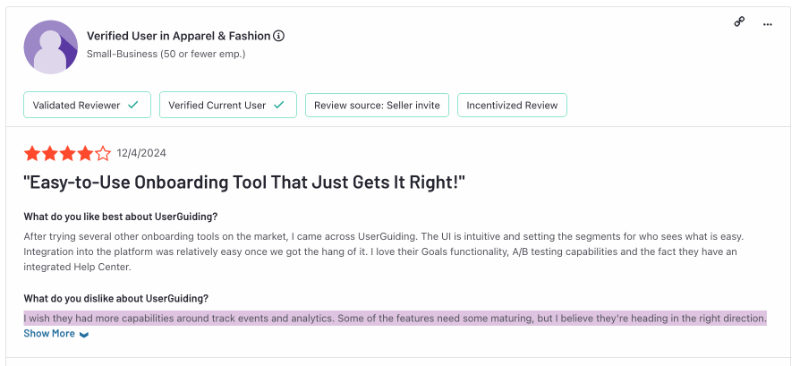
❌ Analytics and Tracking Capabilities are not the Most Advanced: UserGuiding isn’t an analytics-first solution. While it helps you get solid value from engagement data through detailed dashboards and impact reports, it does miss some advanced analytics features like session replays, heatmaps, and native event tracking.
❌ Customization can Feel Limited for Technical Teams: UserGuiding offers plenty of no-code customization options, plus CSS customization if you want to go further. But if you're used to building UI modals from scratch and controlling every pixel, UserGuiding might feel a bit different.
It’s built for non-technical teams to create, test, and optimize in-app content without having to chase down the dev team, after all.
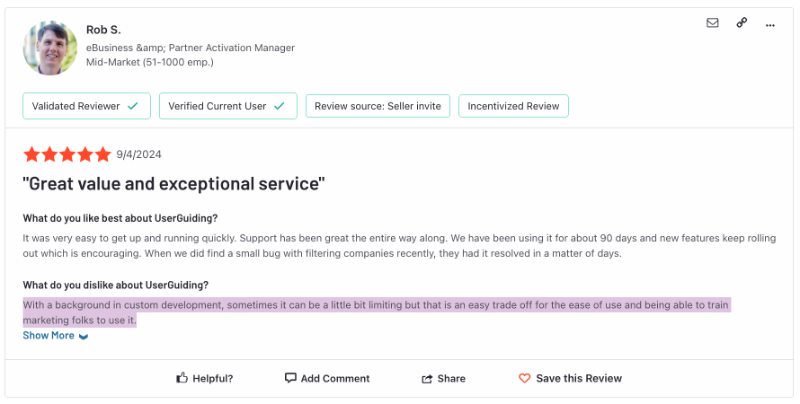
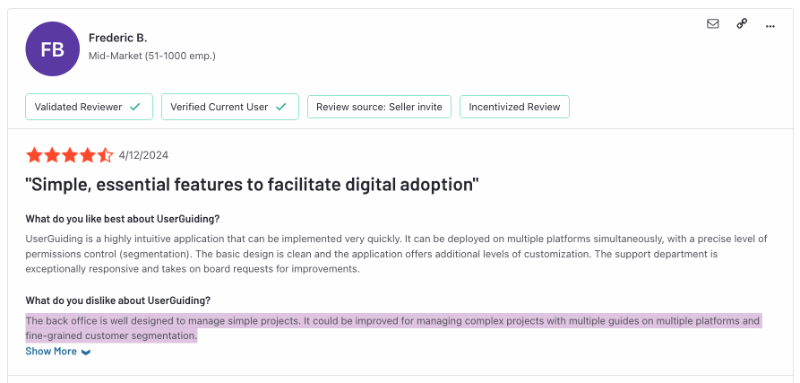
❌ There’s no Multi-platform Support for Bigger Projects: UserGuiding supports web applications only, with no native mobile app or OS-level support. If you manage large projects across multiple platforms, UserGuiding might not be the ideal solution for your needs.
Is there a better alternative to UserGuiding?
UserGuiding is a strong solution for many use cases and reasons. That said, you might have needs or expectations beyond what it offers.
No hard feelings.
In that case, we’ll do our best to present some well-matched alternatives to UserGuiding, as objectively as possible.
Product Fruits for tighter budgets
Product Fruits is one of the most accessible onboarding tools on the market. While it doesn’t offer as comprehensive a toolkit as UserGuiding, it still provides key in-app engagement features like tours, UI hints, onboarding checklists, surveys, announcement modals, and a resource center (or “Life Ring Button,” as they call it).
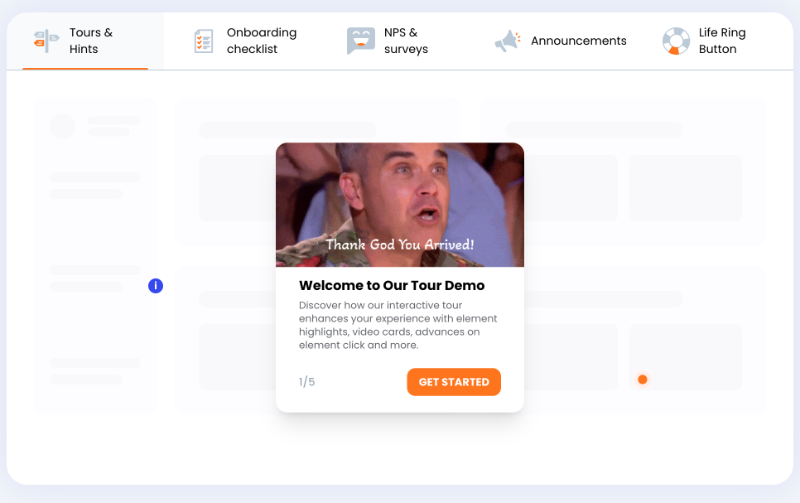
It’s also a no-code platform with little to no learning curve. However, it doesn’t support mobile apps either. The only strong area where Product Fruits competes with UserGuiding is its lower starting price, really.
Userflow for unlimited in-app experiences/flows
Userflow is an in-app experience-focused onboarding platform with offerings that are more or less similar to UserGuiding. You get guidance features, a resource center, in-app surveys, an AI assistant, and feature announcements.
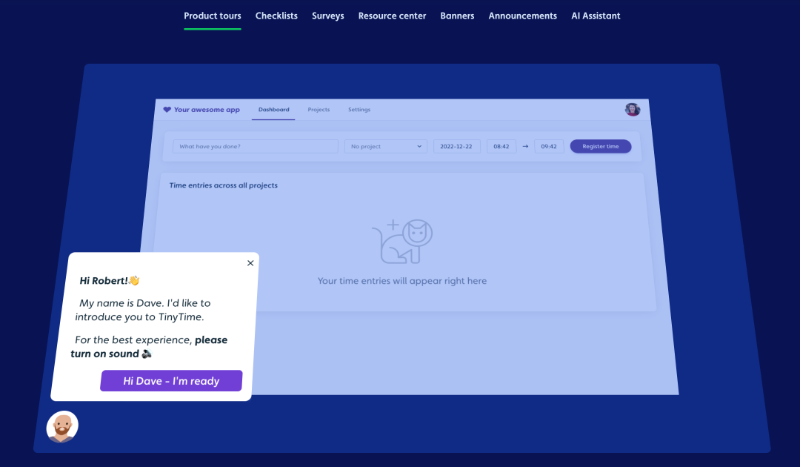
What sets it apart from other onboarding tools is that all pricing plans include unlimited content (flows, launchers, checklists, hotspots, banners, and announcements).
Of course, you pay a premium for that.
It’s not as budget-friendly as Product Fruits, but the “unlimited” aspect might catch your eye, especially if you think you’ll need more than 20 guides, 20 hotspots, and 2 checklists running at once.
Intercom for customer support management
Intercom is a customer support platform with powerful AI agents. UserGuiding offers customer support capabilities such as a knowledge base, product updates, resource centers, and AI Assistant alongside its product adoption features. If you need a more support-focused platform with advanced AI agents and conversational support workflows, Intercom might be a better fit for your use case.
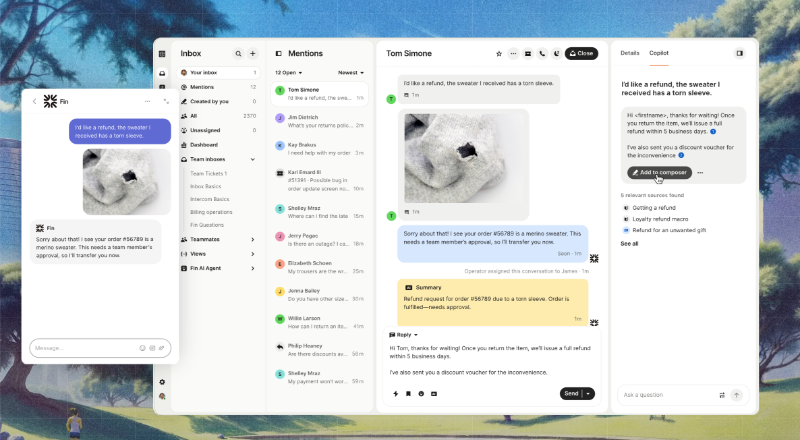
Intercom offers two AI agents: Fin, for your end users, and Copilot, for your support team. Fin works much like UserGuiding’s AI assistant, interacting with users inside your product. Copilot supports your team behind the scenes with automation, information retrieval, and more.
You also get a special inbox (Helpdesk) to monitor Fin’s chat interactions and jump in when it can’t resolve an issue.
Plus, Intercom lets you create a help center with a WYSIWYG editor, just like UserGuiding.
Whatfix for multi-platform experiences
Multi-platform support is tough to find in most DAP and onboarding tools. Mobile app support is easier to come by, but iFrame, OS, and desktop support? That’s pretty rare.
If you want broad platform coverage, Whatfix is almost your only choice.
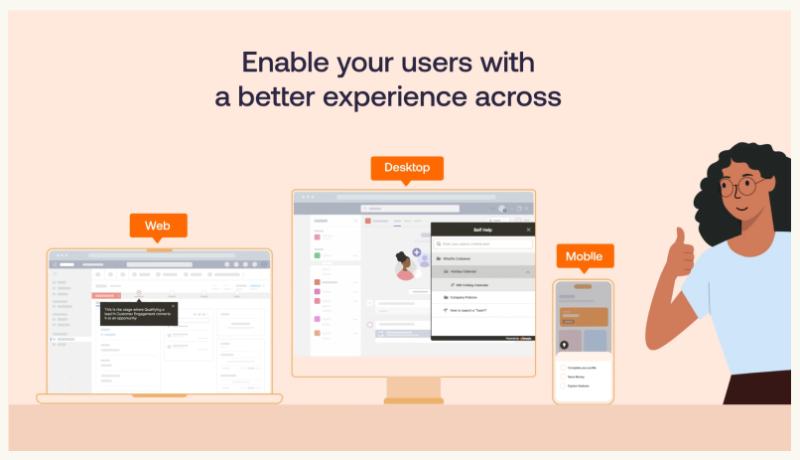
Sure, its pricing is confusing, the final products look outdated and boxy, keeping up with your materials is a pain, and some features require technical skills, even though they market it as no-code.
But hey, at least it supports web, mobile, desktop, and OS.
Pendo for analytics
Pendo is a software experience management platform that provides in-app guidance, communication, and customer feedback features. What really sets it apart, though, are its powerful analytics capabilities.
You get session replays, advanced event tracking, and detailed reports on funnels, workflows, user paths, and retention. Plus, Pendo offers AI-powered trend and user behavior analysis, delivering not just insights and summaries but also actionable next-best-step recommendations.
People on Reddit praise Pendo for its analytics capabilities, too, even if they find the platform expensive and out of reach.

Pendo’s analytics are impressive, but its pricing can be steep. For moderate analytics needs, it might not be the best fit.
Appcues for multi-channel user communication
There’s multi-platform onboarding and then there’s multi-channel communication and user research. Appcues allows you to communicate with your users, whether to announce a new feature or to ask for feedback, on different platforms.
You can send in-app messages, mobile push notifications, and also emails.

Appcues lets you create workflow automations across different platforms. For example, if a user leaves the onboarding process midway, you can set up personalized outreach emails to gently nudge them back to the platform and continue their onboarding.
Or, you can send push notifications.
In-app messaging only works when people are in the app. With Appcues, your messaging reaches out to those who are outside of it, too.
But the multi-channel experiences are add-ons. Expensive ones, too.
Userpilot for mobile experiences
Several UserGuiding alternatives we’ve covered so far had mobile app support, and Userpilot is also one of them. But they’re more dedicated to developing mobile-first features and help you improve your mobile experience, as well.
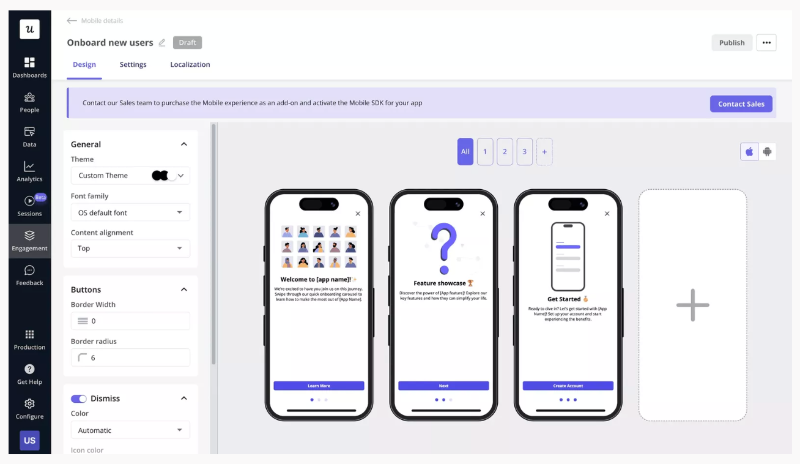
Currently, you can create carousels, slideouts, surveys, and push notifications, and monitor engagement using mobile analytics. They’ve also announced that they’re working on omni-channel engagement and email support.
Their pricing plans might be pretty upsetting, though.
The cheapest tier is very limited and doesn’t have access to add-ons. And yes, mobile experiences are offered as add-ons…
Chameleon for embeddable UX modals
Chameleon is an enterprise-level product adoption platform offering in-app UX modals and self-serve support features. What sets it apart is the range of embeddable models it offers. Many adoption platforms don’t allow embedding content at all, or if they do, customization is limited, and the designs often feel fragile.
Chameleon, however, lets you embed almost anything from checklists to surveys and contextual help cards. The catch? You can only have four active at the same time. But that seems reasonable for UX design purposes.
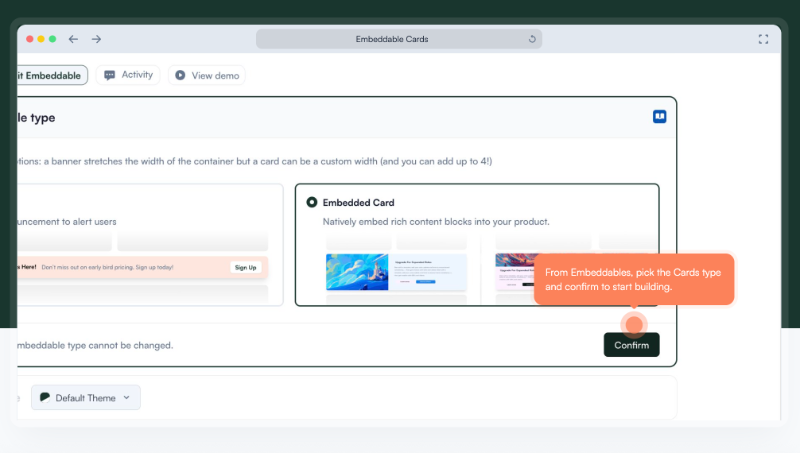
That said, Chameleon can be complex, and you’ll need to spend some time getting familiar with where things are and how to use them.
WalkMe for employee training
WalkMe is another enterprise-level DAP that offers additional features and capabilities for employee onboarding, productivity, workflow automation, process standardization, AI adoption monitoring, as well as SaaS spend monitoring.

While technically you can use any onboarding tool for employee onboarding purposes, WalkMe’s additional offerings really do set it apart in this specific use case.
It costs a ton, has an incredible learning curve, and implementation takes a lot of time.
But if you’re okay with tolerating all of these for additional internal usage features, then WalkMe it is!
How much do the alternatives cost when compared to UserGuiding?
Product Fruits Cost
Product Fruits has 3 plans: Core, Boost, and Enterprise.
The Core plan starts at $79/mo (billed yearly) for up to 1,500 MAU, and the Boost plan starts at $139/mo (billed yearly), again, for up to 1,500 MAU.
Product Fruits has a transparent MAU-based pricing modal that allows you to estimate your cost based on your customer base as well as feature needs. Plus, it also allows for monthly billing.
As we’ve said, it is one of the most budget-friendly onboarding solutions.
But is a low price everything? We’ll leave that for you to decide.
👉🏻 Check out our detailed analysis of Product Fruits’ pricing plans, what they offer, and what their customers really think about the platform.
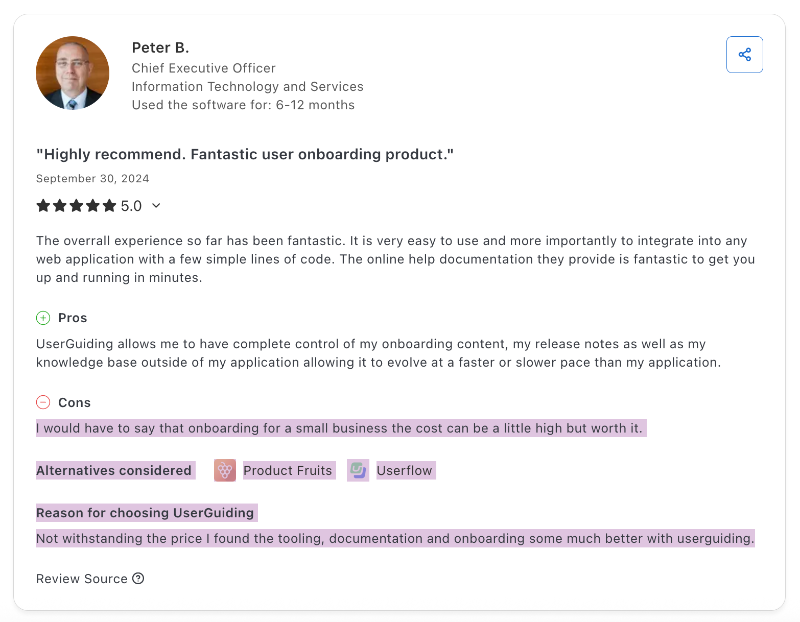
A Capterra reviewer mentioned they considered Product Fruits before choosing UserGuiding, as they initially thought UserGuiding’s price was a bit high. However, after comparing the product value, they found the cost to be worth it.
Their words, not ours. Almost.
Userflow Cost
Userflow has 3 plans: Startup, Pro, and Enterprise. Their pricing is also based on your MAU, and you can estimate your costs right on their pricing page.
But unlike Product Fruits, Userflow’s MAU tiers are set differently, or at least their starting points are.
With Product Fruits, both Core and Boost plans start at 1,500 MAU and go up from there. Userflow, however, calculates MAU based on company size and needs, so the entry point for the Pro plan might actually be higher than that of the Startup plan.
Anyway, here are the numbers:
The Startup plan starts at $240/month (billed annually) for up to 3,000 MAU. The Pro plan kicks off at $680/month (billed annually) for up to 10,000 MAU.
Both plans also offer monthly billing options.
👉🏻 Check out our detailed analysis of Userflow’s pricing plans, what they offer, and what their customers really think about the platform.
Intercom Cost
Intercom has a modular (and a little bit complex) pay-as-you-go pricing system.
Intercom offers three main subscription tiers, Essential, Advanced, and Expert, priced at $29, $85, and $132 per full-seat per month, respectively (when billed annually; higher if billed monthly).
Each plan includes unlimited live chat, in-app messaging (banners, tooltips), help-center features, and access to Fin AI Agent.
Fin AI Agent is available on every plan at $0.99 per resolved conversation.
If you want features like posts, product tours, checklists, and surveys, you’ll need to purchase the “Proactive Support Plus” add-on, which costs $99/month. Additionally, the Copilot AI assistant isn’t included in the base plans and costs $29/month per agent (billed yearly).
Whatfix Cost
Whatfix has a complex and somewhat opaque pricing structure.
Since the suite includes three solutions, Digital Adoption Platform (DAP), Product Analytics, and Mirror, you first need to select which solutions you require. For the DAP, you then choose the platform or platforms you want to build content for. After that, the actual pricing plans vary: some product and platform combinations have only one plan, while others offer up to three.
On top of that, there are the add-ons…
The pricing details do not clearly explain plan differences or feature limits, so you will likely need to contact Whatfix’s sales team to fully understand their pricing.
👉🏻 Or, you can check out our detailed analysis of Whatfix’s pricing plans, where we do our best to uncover the specifics of their features, plans, and customer insights.
But if we are to give you a ballpark number right here, according to Vendr, the average cost of Whatfix is $23,750 per year.
Pendo Cost
Pendo is another company with opaque pricing. At least, its plans are not as complex as Whatfix’s. There are 4 plans: Base, Core, Pulse, and Ultimate.
None of them has their starting prices shared with us on the Pendo pricing page. However, we know they are expensive.
In fact, Vendr data says that the average cost of Pendo is $48,213 per year.
A lot of their advanced features and capabilities are add-ons, and we know your MAU number also affects the price, we just don’t know exactly how much.
👉🏻 Once again, we have conducted a detailed analysis of Pendo’s pricing, along with customer insights, reviews, and other information to help you better understand the pricing tiers and product offerings. Feel free to check it out for more details.
P.S. Pendo also offers a so-called free plan. However, its usability is quite limited since it supports only up to 500 MAU. The features are restricted as well, including just guides, Pendo-branded surveys, and basic engagement analytics.
Appcues Cost
Appcues has 3 plans: Start, Grow, and Enterprise. The cost of these plans is based on MAU and transparent (yey!). You can estimate your cost with an MAU slider on their pricing page.
Let’s talk about starting prices.
The Start plan begins at $300/mo and the Grow plan at $750/mo, both for up to 1,000 MAUs and billed annually. Appcues doesn’t offer a monthly billing option, so all prices are for annual payment.
As you can see, Appcues has the lowest MAU starting point so far (among those we know their quotes for, of course). The same trend applies to scaling, as prices increase very significantly with higher MAU.
Many core features (like NPS and resource centers) and integrations are not included in the Start plan and require purchasing add-ons. Plus, Appcues calculates pricing per app, meaning you pay a full package price for your mobile app rather than just a mobile app add-on.
👉🏻 Check out our detailed analysis of Appcues’ pricing plans, what they offer, and what their customers really think about the platform.
Userpilot Cost
Userpilot has 3 plans: Starter, Growth, and Enterprise. The cost of these plans is also MAU-based; however, we don’t know how pricing scales with higher MAU since calculations are custom and there’s no MAU slider this time.
At least we know the starting prices.
The Starter plan begins at $299/mo (paid annually) and covers up to 2,000 MAU. After 2,000 MAU, the only option to scale is by moving to the next tier. The Growth plan starts at $799/mo (paid annually) and has custom MAU pricing.
Userpilot does not offer a monthly billing option.
The Starter plan is quite limited in features and capabilities. It has almost no analytics or tracking beyond basic page and trend analytics. Also, the mobile app add-on is not available with this tier.
👉🏻 Check out our detailed analysis of Userpilot’s pricing plans, what they offer, and what their customers really think about the platform.
Chameleon Cost
Chameleon offers 3 plans for its adoption platform: Startup, Growth, and Enterprise. Of these, only the Startup plan’s starting price is publicly available, at $279/month.
They don’t disclose how pricing scales with increased MAU or the starting price for the Growth plan.
But don’t let the Startup plan’s starting price mislead you into thinking, “Oh, not bad. It should be similar to tools like Userpilot or Appcues.” The average annual cost of Chameleon is $30,720, double that of Appcues.
So the starting price doesn’t reflect the true cost if you want to fully utilize the platform.
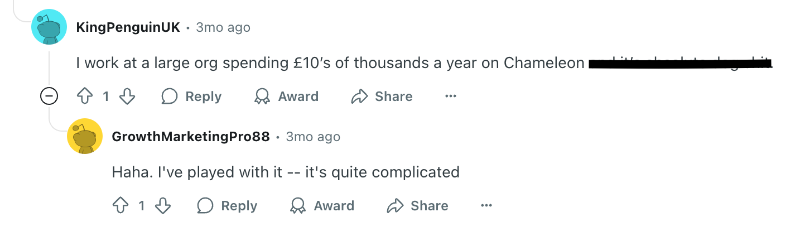
In fact, there are users on Reddit who state that the Chameleon contract prices can reach up to tens of thousands of sterling per year.
Chameleon also provides a free plan for HelpBar, a standalone product that enables CMD+K search (Spotlight search) within your product.
This lets users quickly search for and access all your educational materials using a shortcut, and it includes AI-powered answers.
However, none of the adoption and engagement features are included in the free HelpBar plan.
WalkMe Cost
We’re ending our list with another pricing mystery, thanks to WalkMe. WalkMe offers 2 plans (or solutions): WalkMe for Employees and WalkMe for Customers.
We don’t know their starting prices, how they scale, or what their feature caps are.
All we know from customer insights online is that WalkMe is very, very expensive, $78,817 per year expensive.
The plans don’t differ drastically; WalkMe for Employees includes several additional features focused on internal use and employee productivity.
👉🏻 Check out our detailed analysis of WalkMe pricing plans, what they offer, and what their customers really think about the platform.
In short…
UserGuiding stands out as an intuitive, no-code solution designed to help non-technical teams create impactful in-app experiences with ease.
From product tours to checklists, resource centers, surveys, and even AI assistants, it brings a comprehensive toolkit together under one roof without requiring dev support.
Its ease of use, quick implementation, and highly customizable features make it an ideal option for small to mid-sized teams looking to drive adoption and boost engagement fast.
If that sounds like what you need, start your free trial today and see UserGuiding in action.
Frequently Asked Questions
What is UserGuiding and how does it support product onboarding without coding?
UserGuiding is a no-code onboarding platform that enables non-technical teams to create interactive in-app experiences without relying on developers. It allows product, growth, and customer success teams to build guides, onboarding checklists, surveys, and more. Its drag-and-drop interface and intuitive panel make content creation simple and fast. This helps companies onboard users more effectively and scale their adoption efforts from a single, easy-to-use platform.
What is UserGuiding used for in SaaS onboarding and user engagement?
UserGuiding is commonly used in SaaS to onboard new customers/ users, guide them through product features, and engage them with targeted in-app content. It offers interactive product tours, checklists, tooltips, and surveys that can be tailored to user segments. This helps teams provide timely and relevant information, leading to faster activation and more meaningful user engagement, especially in product-led growth environments.
How does UserGuiding help improve activation rates with onboarding checklists?
UserGuiding’s onboarding checklists guide users through essential steps to get started with a product. These checklists help users discover value faster and reduce drop-offs during the early stages. By allowing teams to define clear goals and track progress within the app, the platform increases the likelihood of user activation. Many customers have reported measurable improvements in onboarding completion and early product adoption after using UserGuiding.
What are the key features of UserGuiding for in-app tutorials and interactive product tours?
UserGuiding lets you build interactive product tours using tooltips, input field highlights, and modals. You can personalize each step through segmentation and targeting to show different tours based on user behavior or lifecycle stage. Each step in the tutorial can include buttons, visuals, links, and videos to make the guidance more engaging. These tours help users understand the product faster and navigate key features more effectively.
What is UserGuiding software’s role in reducing user churn and boosting retention?
UserGuiding helps reduce churn by making it easier for users to understand and gain value from a product. Through targeted onboarding experiences, contextual support, and timely updates, it keeps users informed and engaged. The ability to segment users and tailor content to their behavior ensures relevance. This leads to a smoother product experience, which in turn increases user satisfaction and boosts long-term retention rates.

.png)