


.svg)
.svg)
.svg)
.svg)



.svg)




.svg)
.svg)

TL;DR
- Users often feel lost in complex products because the guidance isn’t clear, structured, or accessible. Without support, users get frustrated, slow down, or even churn before reaching their “aha!” moment.
- The best practices for simplifying complex products include:
- Announcing updates and improvements clearly, both in-app and in a dedicated product updates hub.
- Providing step-by-step documentation, FAQs, and interactive tutorials that show users how to get real value from them.
- Organizing knowledge base resources with categories and search functionality so users can quickly find what they need.
- Using visuals in help materials to simplify multi-step flows, highlight key actions, and support different learning styles.
- Continuously updating educational content based on user feedback.
- With UserGuiding, you can offer all of this guidance (interactive walkthroughs, hotspots, resource centers, knowledge bases, product updates, and AI assistants).
Why do users feel lost in your product?
Having a complex product isn’t inherently a bad thing; it usually means you’re offering a lot of value.
But without the right guidance, that value gets buried under confusion.
When users don’t understand how to navigate your product, small roadblocks quickly snowball into bigger issues.
- First comes frustration, which increases support tickets.
- Adoption slows down, and users struggle to see your product’s true value.
- Some never even reach their “aha!” moment before they churn…
And even for those who stay, low feature usage means missed upsell opportunities, because they aren’t experiencing the full benefits of your platform.
All because you have a lot to offer.
But the good news is that you don’t need to strip away features to fix this.
What you need instead is to offer guidance. A lot of it. In different forms and contexts.
Here’s how 👇🏻
What are the best practices for simplifying complex products?
#1 Announce updates and improvements clearly
If we are to start from the beginning, and explain the whole process over a new feature update, let’s say, it all begins with the announcement, right?
You do the in-app announcements with flashy pop-up modals and even offer contextuality with little tooptips, maybe.
However, complex features with multiple settings, long workflows, or advanced functionality require more explanation than a simple pop-up can provide. Users need a dedicated space to explore the feature in detail.
Like a changelog or a product updates page.
Within this hub, you can:
- Provide detailed explanations of new features and workflows (all the whats, whys, and hows regarding the update).
- Maintain a historical record of updates so users can reference past changes.
#2 Provide clear, structured documentation
Release notes are not the same as help materials.
They provide context about what’s new, but users often need step-by-step guidance to understand how to actually use a feature and get real value from it.
That’s why clear, structured documentation is essential.
This can include:
- How-to guides and video tutorials
- Best practice and use case articles
- FAQs
You can organize all this content within a dedicated help center or a knowledge base.
#3 Make resources searchable and easy to access
Creating clear and helpful support materials is one challenge, but organizing them in a way that users can actually find and use is a whole other task.
Simply dumping all your resources into a knowledge base won’t make them helpful.
For a knowledge base (or help center) to truly serve users, it needs to be well-structured and easy to navigate.
📖 You need:
- Categories and labels
- Search functionality
- Direct integration with your in-app resource center
👉🏻 You can also integrate your knowledge base documentation with an AI assistant inside the app to turn static help articles into interactive support.
Users can ask questions in their natural language and get immediate guidance.
Anything to stay up to date with evolving user needs, right?
#4 Use visuals (screenshots, videos) to simplify complex flows
Another important practice to improve the quality of your help materials and guides is to incorporate visuals.
Complex flows, multiple settings, or multi-step processes are often difficult to explain with text alone. Screenshots, annotated images, and short videos can show users exactly what to do and improve comprehension.
🖼️ Visuals also help you:
- Highlight key actions so users know where to click.
- Support different learning styles with visual guidance.
- Provide quick references for immediate answers.
#5 Continuously update content based on user feedback
You’ve announced your update, provided contextual release notes, and created detailed tutorials or documentation that make sense to users and help them get value from new functionality.
But is that all? Not quite.
The next step is monitoring how your content performs.
You need to understand whether users are actually getting value from all of this.
And for that, there’s no better way to ask them.
You can collect feedback from users after they interact with help materials, or even gather anonymous insights right under your knowledge base articles and product update notes.
This lets you see which content is helpful and where users are still struggling.
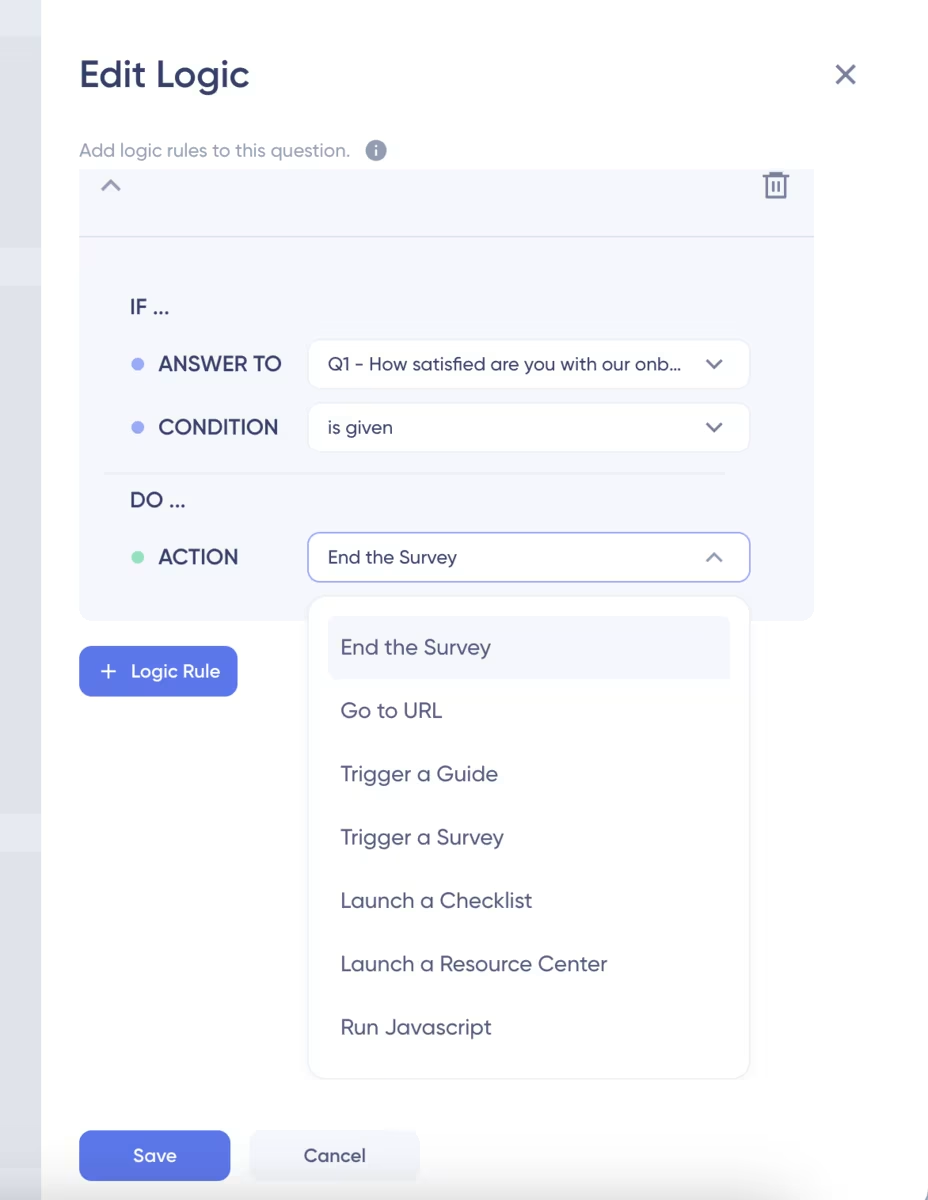
To gain deeper insights, you can also consider using logic-based surveys, which let you ask different follow-up questions based on the user’s answer to the previous question.
You can also trigger different surveys, guides, and checklists based on the user’s answer to a question.
👇🏻 Here’s how UserGuiding helps you create logic-based surveys using a no-code, drag-and-drop survey builder:
UserGuiding can help you!
Talking about UserGuiding…
Did you know that you can implement all of these good practices (and more) to simplify complex product experiences, reduce user confusion, and lower the learning curve and adoption barriers, all within a single platform?
Yes, with UserGuiding.
And without writing a single line of code or spending months figuring it out.
Here’s how UserGuiding helps you remove learning frictions:
1) Product updates for keeping users informed
Just like we started the best practices with product updates and announcements, let’s do the same here and go over UserGuiding’s standalone product updates page feature first.
With product updates, you can announce new features, improvements, or fixes in a structured and transparent way, so your users always know where to look when they want more information about a new feature they’ve seen on your socials or in in-app modals.
Here’s an example product updates page created with UserGuiding:

✅ UserGuiding’s product updates enable you to:
- Organize your release notes with categories and labels.
- Collect anonymous feedback right under each note.
- Incorporate videos into your notes.
You can also add your product updates to your in-app resource center as a separate tab, allowing users to read news and updates without leaving the app.
And, you can boost your updates with resource center tooltips and slideouts!
Like this one here:

2) Resource center for a centralized self-serve support
As we’ve mentioned, you can add your product updates as a separate tab to your in-app resource center.
Which also means, yes, you can build a resource center with UserGuiding, too.
📌 Here are a few ways you can make the most of it:
- Add checklists, guides, and surveys for easy access.
- Highlight recent updates so users never miss what’s new.
- Link your knowledge base and let users search for answers without leaving your app.
- Provide links to additional resources like online courses, YouTube tutorials, or community forums.
3) Knowledge base for searchable, structured product guidance
When users want to dig deeper, which is a common need for complex but valuable products, a knowledge base gives them a clear and searchable library of articles, FAQs, and tutorials.
Self-serve support is the first instinct for many product users when they run into a problem or have a question.
Even if you have the friendliest support team, most people prefer to solve issues on their own first.
So having an organized knowledge base (like this 👇🏻) is important.
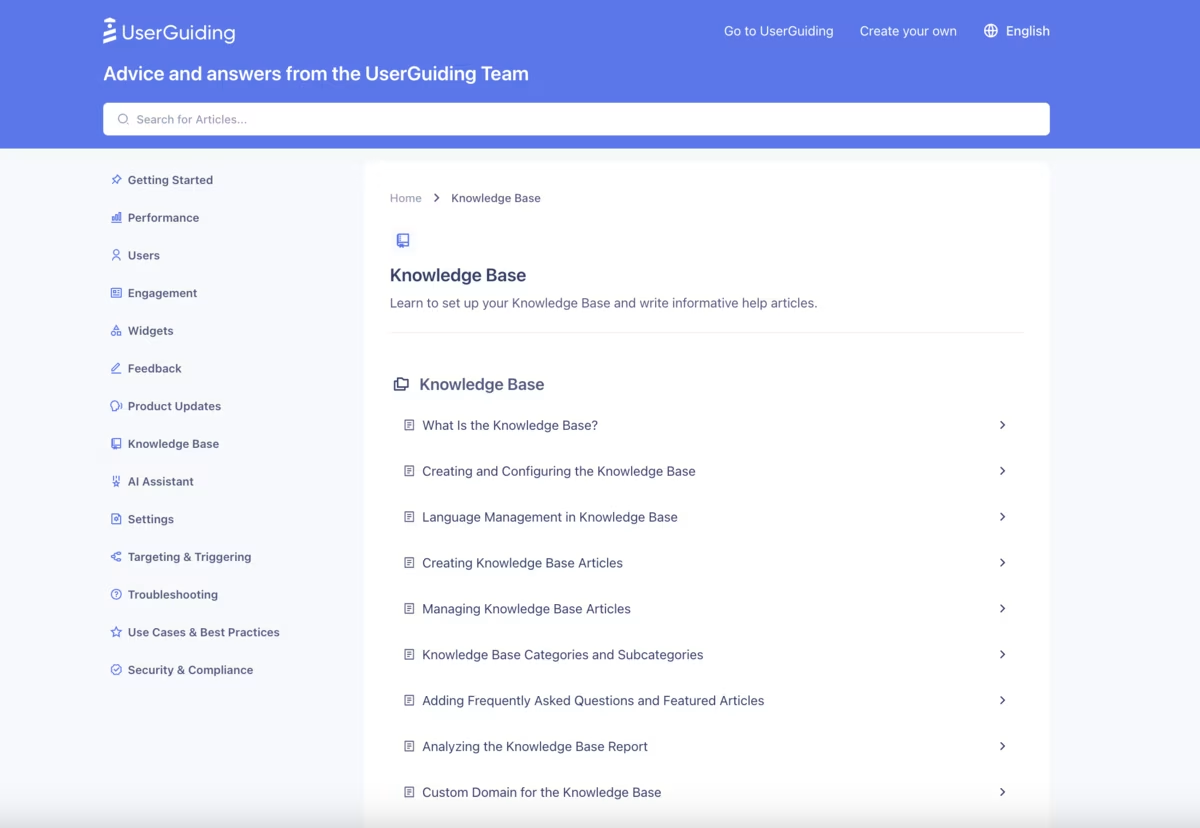
✅ With UserGuiding’s knowledge base feature, you can:
- Highlight your “getting started” guides in a dedicated category.
- Make content searchable so users don’t waste time scrolling through long lists.
- Localize your content to support users in their preferred language.
- Track engagement to see which articles perform well or need improvement.
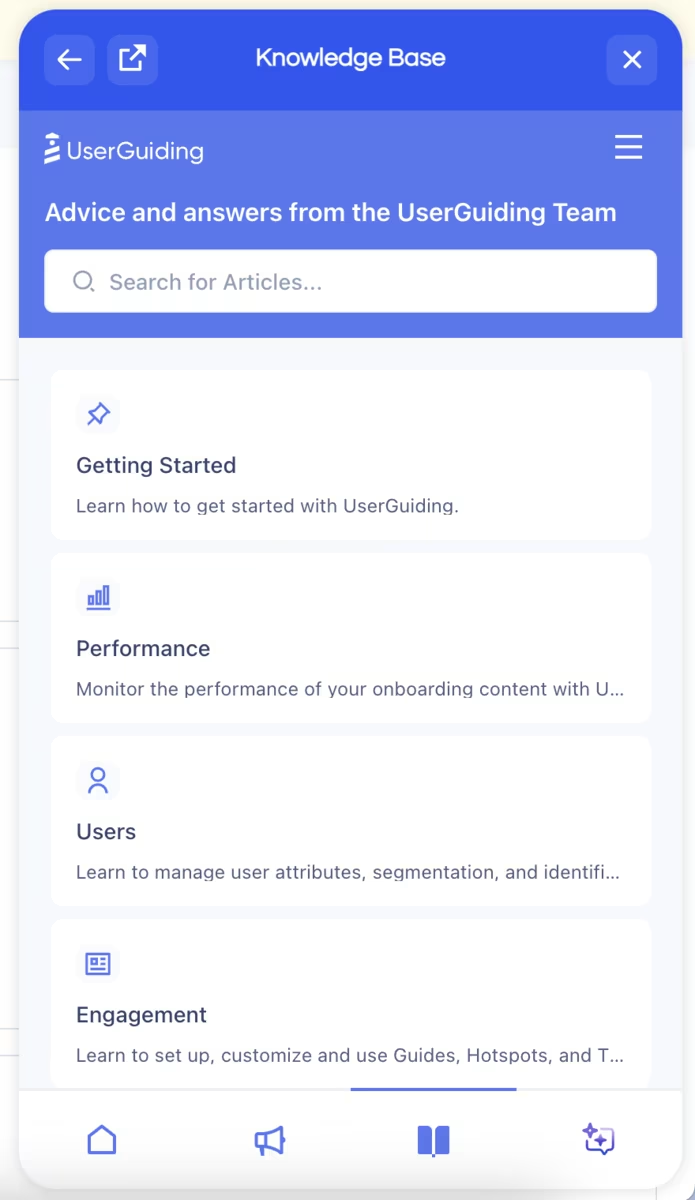
Similar to product updates, you can also add your knowledge base as a separate tab in your in-app resource center.
Here’s what it looks like:
4) AI assistant for 24/7 conversational support
With an AI assistant, your support materials become conversational. Users can simply ask questions and get instant, contextual answers from your guides, knowledge base, or other integrated sources.
An AI assistant (like this👇🏻) allows you to offer a dynamic, always-on support experience for your customers.
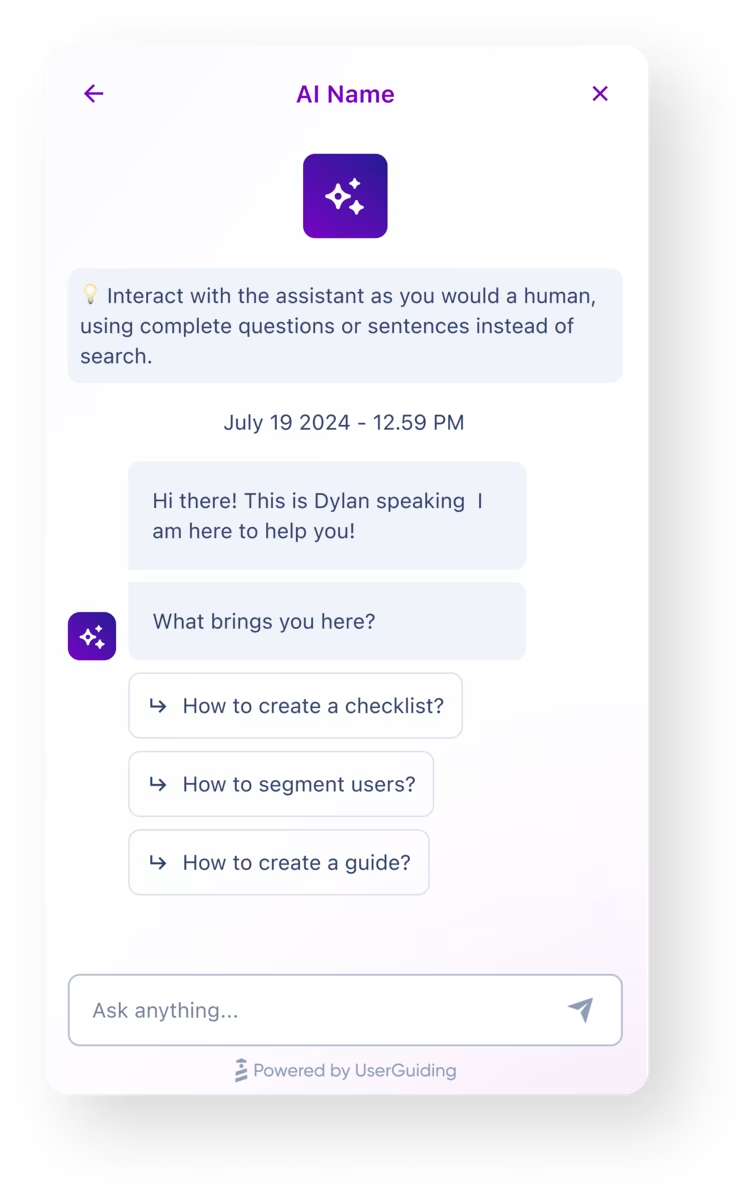
💡 The AI assistant can suggest relevant interactive tours (if available) or hand the topic over to a human support agent if it cannot be resolved automatically.
5) Interactive walkthroughs for step-by-step feature adoption
Interactive walkthroughs guide users through each step directly inside your product, helping them complete tasks and see value right away.
So, instead of explaining how something works, you show them.
🚀 Interactive walkthroughs allow you to:
- Eliminate user confusion before it arises.
- Simplify onboarding with visuals, tooltips, and modals.
- Boost feature discovery and adoption with contextual guidance.
Here’s an example product tour modal that goes over order tracking:

💡 With UserGuiding, you can personalize your interactive walkthroughs and trigger them based on user roles, behavior, or engagement.
This way, each user gets the guidance that matters most to them, which helps them reach their “aha!” moment faster.
Personalized guidance also makes your product feel less complex, as users focus on what’s relevant to them and are guided step by step instead of figuring everything out alone.
📋 On average, a company uses 15 interactive guides.
6) Hotspots/Tooltips for instant, contextual in-app help
When users need quick pointers, hotspots and tooltips provide just-in-time guidance.
A simple highlight, icon, or short explanation can steer them in the right direction without interrupting their flow. You can even trigger walkthroughs from hotspots for a deeper dive when needed.
Like this one here:
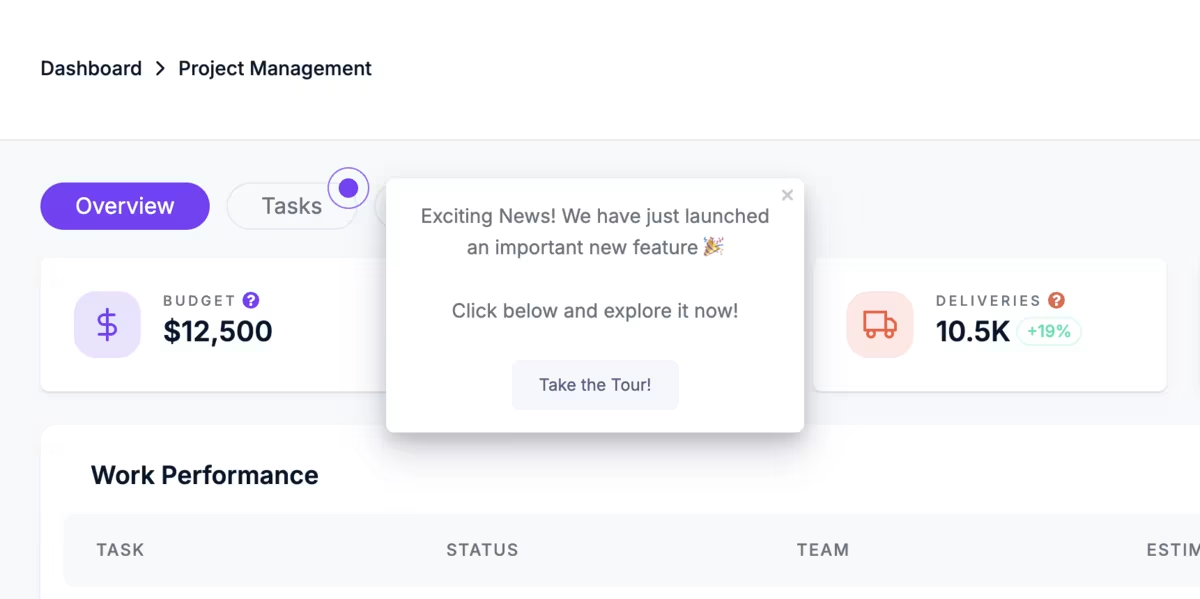
💡 Hotspots and tooltips also reduce mental load by giving enough information to continue without stopping the flow.
Users can keep progressing through their tasks while still discovering key features and without feeling overwhelmed by a large tutorial or educational session.
Because not all friction or confusion is worth checking out help articles…
📋 On average, a company uses 5 hotspots.
Pro usage tips for self-serve guidance
1️⃣ Start with the most frequently asked questions or the top support issues. If you’re starting from scratch with all this self-serve support and guidance, you should focus on the common pain points that generate the most support requests first.
- This way, your resources become immediately valuable to users. The same reasoning applies to existing content improvements and updates.
2️⃣ Offer multi-format resources. Articles, videos, interactive guides… Every customer learns differently and prefers a different style of guidance.
- Your responsibility is to support as many of them as possible. And that now includes offering an AI assistant.
3️⃣ Use engagement analytics to track what users search for and refine content. You need to monitor which resources users search for, interact with, or skip.
- These insights allow you to refine your content, prioritize updates, and ensure your self-serve materials are actually solving user problems. Monitoring engagement patterns also helps you uncover insights that user surveys might miss.
- Some things users can easily express in feedback, and others they simply can’t put into words, but their behavior reveals them.
4️⃣ Promote resources during onboarding and inside the product. You can highlight key guides, tutorials, and knowledge base articles while users are first exploring your product or encountering a new feature.
- This ensures users see the right resources at the right time, before small frictions and questions turn into first support tickets, then adoption barriers.
5️⃣ Run A/B tests to track engagement and refine your adoption strategy. You should experiment with different content formats, placements, and messaging to see what drives engagement.
What positive outcomes can you expect with UserGuiding?
Companies using UserGuiding to simplify product experiences see lower support costs, higher adoption, and happier users.
For example:
- Brian.study saved over $15K in support operations in 6 months by using a knowledge base and resource center.
- Twin Science reduced employee costs and support by more than $10K with guides, tooltips, and a localized knowledge base for self-service support.
- Straico achieved 52% product market fit by combining surveys, modals, and a resource center with an introductory onboarding guide for easy access.
Final words…
Complex products don’t have to feel overwhelming.
With clear documentation, searchable resources, visuals, continuous updates (and the right tools, of course), you can turn confusion into confidence and adoption into growth.
And the best part? You can do it all with UserGuiding.
No code, no hassle.

.png)