We analyzed 36 SaaS onboarding flows and rated every single one.
See the results →
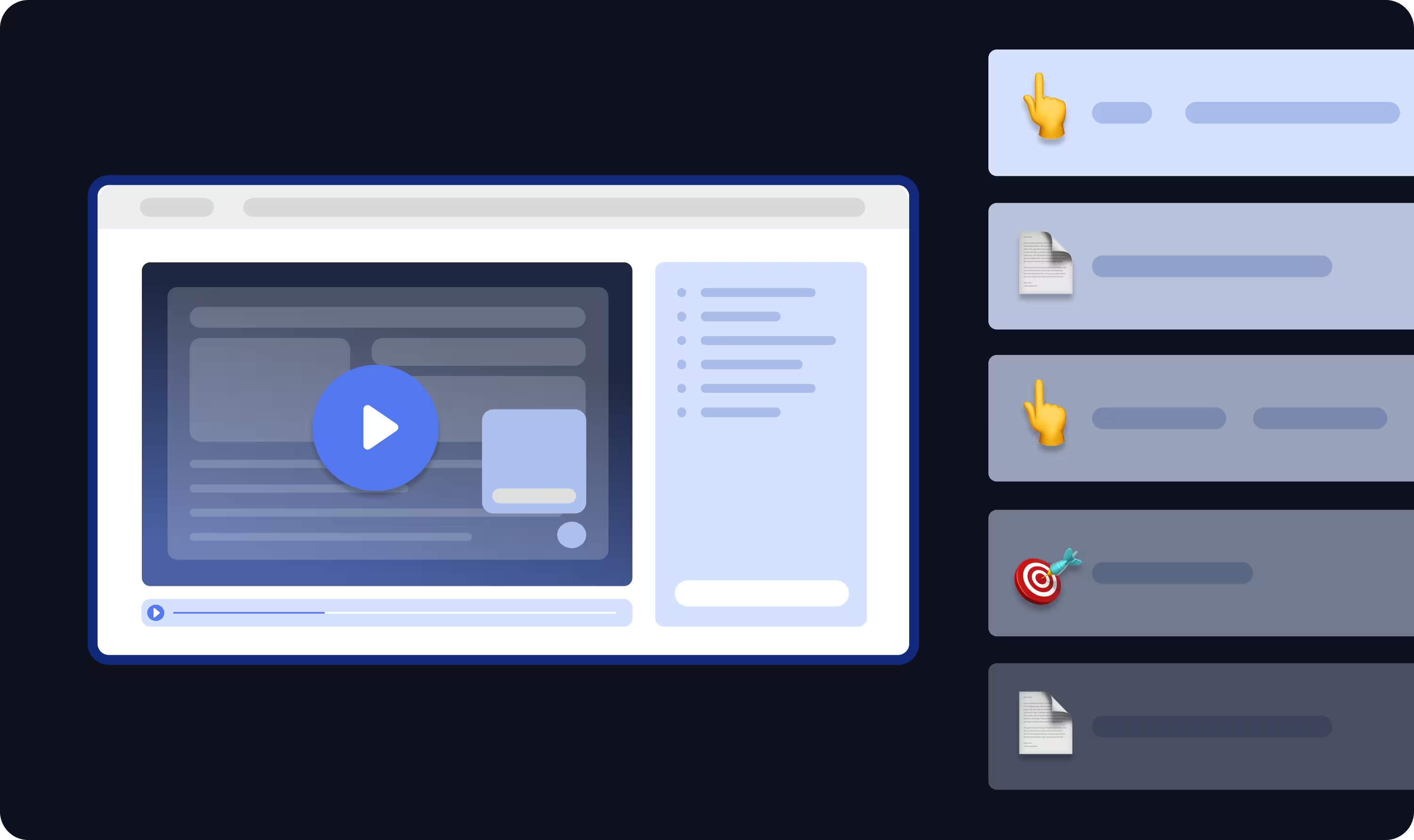
Your analytics tell you where users drop off. Session Replay shows you why. Watch the full session from start to finish and see exactly what happened before a user churned, skipped a step, or submitted a support ticket.

Your analytics tell you where users drop off. Session Replay shows you why. Watch the full session from start to finish and see exactly what happened before a user churned, skipped a step, or submitted a support ticket.

Every recording captures page navigations, clicks, scroll depth, rage clicks, and JavaScript errors. Share a session link with your engineering team instead of writing another "steps to reproduce" ticket. They'll see exactly what the user saw.

Every recording captures page navigations, clicks, scroll depth, rage clicks, and JavaScript errors. Share a session link with your engineering team instead of writing another "steps to reproduce" ticket. They'll see exactly what the user saw.
Configure everything from a single Settings page. Set your sample rate to capture every session or just a fraction. Target specific pages, exclude sensitive URLs like billing or login, and set minimum/maximum recording duration. Choose from three privacy masking levels (Strict, Medium, Light) or define custom CSS selectors. Limit recording to specific user segments and control how long data is retained.


“With UserGuiding, the process of getting help is pretty straightforward.”

Your dashboards tell you what is happening, like where users drop off or which steps they skip. Session Replay shows you why by letting you watch the actual session. You can see how users interact with your product tours, checklists, and tooltips in real time, and use Playlists to organize recordings by segment, page, or error type.
Yes. The sample rate setting lets you choose what percentage of user sessions get recorded. Set it to 100% to capture everything, or lower it to reduce storage usage. You can also set minimum and maximum recording durations to skip short bounces and cap long sessions, and restrict recording to specific user segments or pages.
UserGuiding offers three masking levels. Strict masks all text and input fields by default. Medium masks passwords and sensitive inputs while showing most text. Light records most content with minimal masking. You can also define specific CSS selectors to block, mask, or unmask individual elements. Sensitive pages like billing or login can be excluded entirely via URL rules.
Playlists are saved collections of sessions that match specific filter conditions. You can filter by duration, browser, entry URL, any visited URL, click count, rage clicks, JS errors, start time, user ID, or user segment. Conditions are grouped with AND/OR logic, so you can build precise collections you revisit without filtering from scratch every time.
Each recording captures a user's full session from start to finish: page navigations, clicks, scroll depth, rage clicks, and JavaScript errors. Sessions are recorded automatically based on the conditions you set, like which pages to capture, which users to include, and how long recordings should last.